
Loyalty on your website - the add-ins
What this page is for
The loyalty add-ins put the Stores & Loyalty Center on your own website. Each add-in is a small piece of a page that you place with one line of code from Listrak Converse: a coupon shelf people can search and clip, a deals shelf, this week's ad with pages to swipe, the member's wallet with their points, a home section that is all about the person who is signed in, and a points badge for your site's header. You can put as many add-ins on a page as you like, and they all share one sign-in.
The add-ins are built for a phone first. On a phone, each one is a single column with buttons a thumb can reach, filters that slide up from the bottom of the screen and an ad you turn page by page with a swipe. On a wide screen, the same add-in draws a grid of cards and shows the ad two pages at a time.
What you see
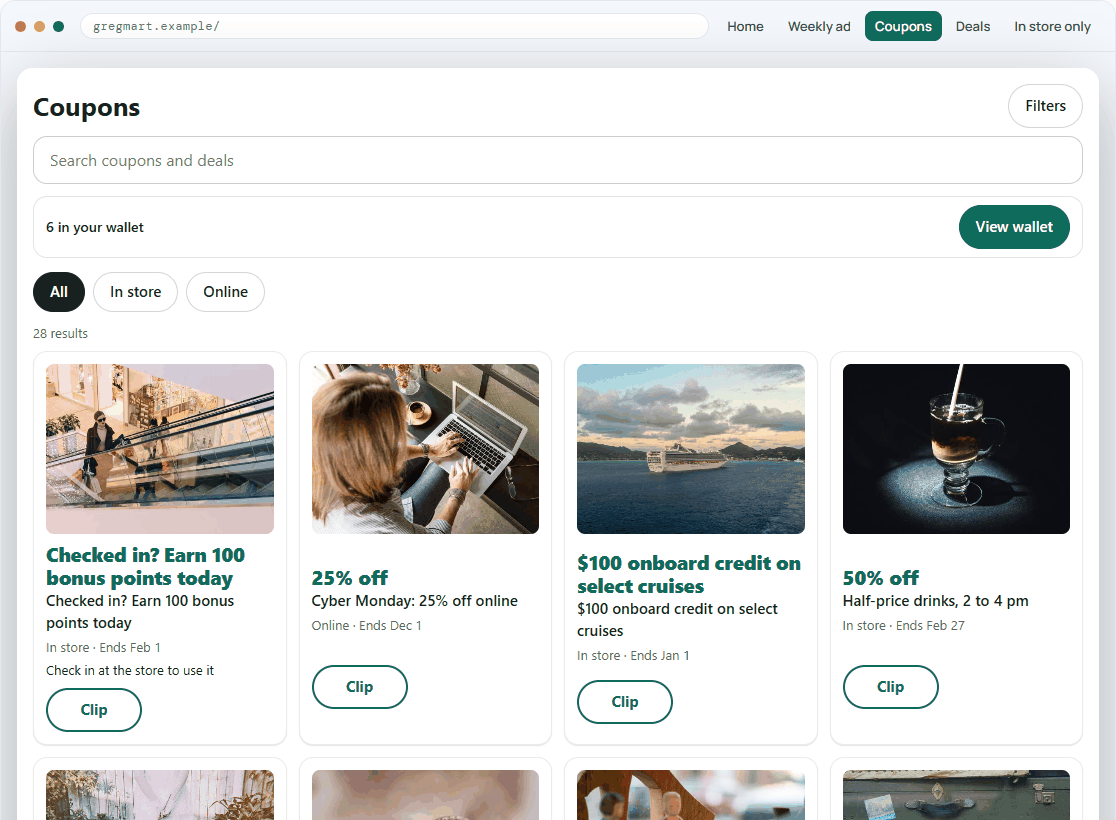
- The coupons and deals add-ins. A search box, chips for where an offer can be used (in store or online), the Filters sheet for savings, category and sort, and a card for each offer. Every coupon card has Clip, and every deal card has See the deal, which shows what you pay and what the deal is worth.
- This week's ad. The pages of the ad, one per screen on a phone, with each item on a page ready to tap. Below the pages is everything in the ad as a list you can search, and Share this week's ad sends a link to the ad. The dates under its name run to the last day of the sale. When you run more than one ad at the same time, such as this week's ad and a holiday gift guide, a row of buttons at the top lets shoppers switch between them, the newest first.
- My wallet. The member's points, large, with their tier and how far they are from the next one, their visits and their punch card. Below that is everything they hold, with the offers that end soonest at the top. Tapping one shows its code and a barcode to show at the register.
- Home. A greeting by name, the member's points and visits, the first few items in their wallet, this week's ad and coupons picked for them. Someone who is not signed in sees Sign in or join and the best of your offers.
- The points badge. A small badge for your site's header with the program's mark and the member's points and tier, such as "1,240 pts - Gold". Anyone who is not signed in sees Sign in for your points. Tapping the badge opens a panel with everything about the member, the rewards their points can buy and their coupons that are ready to use. On a phone, the panel opens as a sheet.
What you can do
Put an add-in on a page
- Check that your program is on the web in its "On your website" settings, with your website's address on its list. These settings are part of the program's rules, saved through the Loyalty API or by an AI assistant on Converse's MCP server; the program's page in the Stores & Loyalty Center does not show them yet, so ask whoever looks after your integrations if you are not sure.
- Copy the add-in's line of code from the developer guide for the add-ins (linked below), choosing which add-in you want and naming your workspace and your program.
- Paste the line where the add-in should appear on your page. It draws itself there in a clean default look, with the accent color, background and font you set in the line. Wearing your workspace's own design is on the way.
Give the add-ins your brand's look
The add-ins read every color, corner, font and size from a small set of named settings, so your web developer can restyle them from one stylesheet on your own site without copying anything of ours.
- Ask your web developer to put a stylesheet on your website that sets your brand color, your font and how round you want the cards. The developer guide for the add-ins (linked below) lists every setting and has a worked example.
- Add
data-style-source="host"and the stylesheet's address asdata-style-hrefto the add-in's line of code. - Reload your page. The coupons, deals, ad and wallet wear your brand on a phone and on a computer alike. The add-ins use your stylesheet only on a page your program lists in its "On your website" settings, and only when the stylesheet lives on that same website.
Use the add-ins on a phone
You do not need a separate mobile version. Every add-in is built for a phone first and checked on small and large phones before each release: nothing scrolls sideways, the text stays easy to read, every button is big enough for a thumb, and the sheets that open for an offer, sign in, joining or a code at the register fit the screen. In a narrow column on a computer, such as a sidebar, an add-in uses its phone layout; with more room it shows a grid of cards.
Sign in to clip coupons and see your wallet
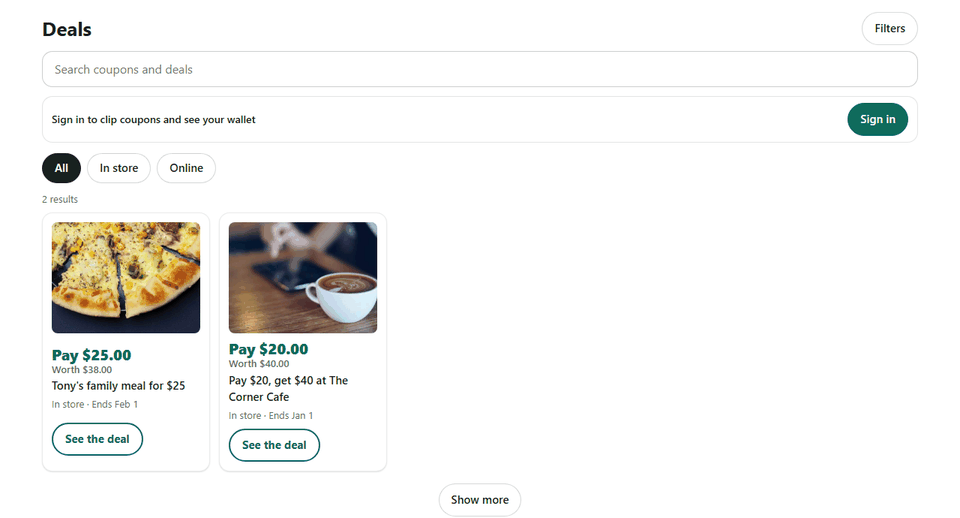
- Select Clip on any coupon, or Sign in in the add-in.
- Type your mobile number or your email address in the one box and select Text me a code.
- Type the six-digit code you receive and select Sign in. Leave Keep me signed in on this device ticked on your own phone, and the add-in recognizes you next time without a new code - for 60 days after your last visit, and never longer than a year.
- If the number or address is not a member yet, the same sheet becomes the join form for your program, titled with its name. Type your first name and anything else the program asks for, such as your birthday (pick the month and the day - never the year), tick the box to agree to the program's terms (select Read the terms to see them), and choose whether to get deals by text or email in the separate box, which is never ticked for you. Then select Join and sign in. You are a member straight away, signed in, with any points the program gives for joining already in your account.
Join from the add-in
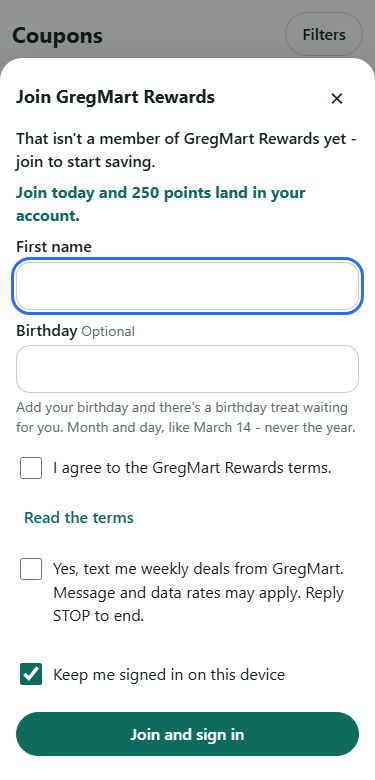
- Sign in with your mobile number or email as above. When the code proves an address that is not a member yet, the sheet asks you to join instead of saying no.
- Fill in your first name. If the program needs more, such as a birthday, the form asks for it and says when something is optional. A birthday is the month and the day, each picked from a list.
- Tick the box to agree to the program's terms. The marketing box is separate and starts unticked, so you only get deals by text or email if you choose them.
- Select Join and sign in. The add-in welcomes you to the program and shows the points you earned for joining.
Clip before you sign in
- Select Clip on a coupon while you are not signed in. The add-in keeps the coupon for you at once and says Clipped - sign in to keep it.
- Sign in when you are ready. Every coupon you clipped lands in your wallet. If one has ended or is already in your wallet, the add-in tells you which one and why, so nothing is lost without a word.
Show a coupon at the register
- Open My wallet, or tap the points badge and choose a coupon under Ready to use.
- Tap the coupon. The add-in shows its code as text and as a barcode or QR code that the register can scan.
- Select Copy the code to paste it into an online checkout.
Check in at the register
Some stores show a QR code on the till. Scan it with your phone's camera: it opens your messages with a code already written, and you just press send. Your visit counts at that store, and the reply lists everything in your wallet you can use there right now. If the QR code opens My wallet instead, sign in and the wallet asks whether to check you in at that store: select Check in and it shows At the register with the coupons ready to use, or select Close to skip it. Nothing is checked in until you select Check in. The code on the till changes every minute, so if it says the code has changed, scan the screen again.
Share a coupon with a friend
Some coupons can travel. The coupon's own rules say how: a copy, where you keep yours and your friend gets one too, or a coupon you pass on, which leaves your wallet when your friend claims it.
- Open My wallet and tap a coupon you hold. A coupon that can travel shows Share with a friend under its code, with a line saying whether it is a copy or one you pass on.
- Select Share with a friend. The add-in makes a gift link for that coupon. Some coupons can go to only so many friends; when yours has a limit, the add-in says how many more friends you can still share it with.
- Send the link yourself: Share with a friend again opens your phone's own share sheet, or Copy the link puts it on your clipboard for a text or an email. Listrak Converse never messages your friend for you.
- Changed your mind? While nobody has claimed it, Take the link back stops the link working, and it frees a place if the coupon can only go to so many friends. A coupon you were passing on stays in your wallet.
- Some coupons thank you for sharing: when your friend uses the coupon at the register, you earn the points the coupon promises, once for each link.
Claim a coupon a friend sent you
- Open the gift link. The page shows what the gift is, but never who sent it or their number.
- Sign in, then select Claim it. The coupon goes into your wallet, ready to show at the register. If you are not a member yet, you join in the same sign-in sheet first.
- A gift link works once. If someone already claimed it, it expired or the sender took it back, the page says so in plain words.
Take your wallet to your phone
- Sign in on the website.
- Select Send it to my phone under your points. Your wallet arrives on your phone as a conversation, with your coupons ready to use in the store.
Put your member card in your phone's wallet
- Open My wallet and sign in. Your card on your phone shows the button your phone uses: Add to Apple Wallet on an iPhone, Add to Google Wallet on an Android phone, and both on a computer.
- Select the button. Your phone's wallet offers to add the card, and from then on you show it at the register for your points.
On the store's text conversation, the wallet card can offer a quick reply such as "Put it on my phone". Its link opens your wallet already signed in and takes you straight to Your card on your phone, lit for a moment so you can find it. The section appears only when the program's card is ready for your phone.
On an iPhone, pull down on the back of the card in Wallet to bring it up to date: it fetches your newest points and tier right away. Wallet doesn't refresh the card on its own yet, so pull it down after you earn or spend points.
Put a coupon, a deal or a gift certificate in your phone's wallet
Each coupon, deal, reward and gift certificate you hold can go into your phone's wallet on its own, with its own code ready for the register. A coupon shows its value and when it ends; a gift certificate shows its balance. After you spend some of it, pull down on the back of the pass on an iPhone to see what's left. Once a coupon is used, or a gift certificate is spent or passed on, the pass says so and drops its code the next time it refreshes, and the register won't take that code again either way.
- Open My wallet and tap what you hold - a coupon, a deal, a reward or a gift certificate. You can do the same from the home add-in or the points badge.
- Under its code, Keep it on your phone shows the button your device uses: Add to Apple Wallet on an iPhone, an iPad or Safari on a Mac, Add to Google Wallet on an Android phone, and both on any other computer. On a gift certificate the buttons sit under Print the certificate.
- Select the button. A new window opens and your phone's wallet offers to add the pass. Allow pop-ups for the page if your browser asks.
When the store hasn't set up phone wallet passes yet, the sheet says so instead of showing a button, and something you've already used shows no buttons at all. If your wallet couldn't be checked just now, the sheet says so and offers Try again. A gift certificate's pass carries its whole code, which spends like cash, so add it only to your own phone.
On the store's text conversation, the wallet card can offer a quick reply such as "Add it to my phone". Its link opens your wallet already signed in, on that one coupon or certificate, with the two buttons in view and lit for a moment. Nothing is added until you tap a button. If the item is no longer in your wallet, the add-in says so and shows everything you hold.
The printed gift certificate page has its own way there: Put it in my phone's wallet opens your wallet on that certificate in a new tab, where you sign in with a code and select the button. The page shows that link only when the store's passes are ready for your device and its program is on its website. When you don't see it, open the certificate from your wallet instead.
Buy a gift certificate
The gifts add-in shows a store's gift certificates, with Check a balance below them.
- Select a gift certificate to see its amounts. Each amount has its own Buy button, and Another amount lets you choose your own when the store allows it. The chat then asks for your amount - some stores' chats show the amounts once more first, so pick Another amount there too. A certificate that comes in one amount shows that amount, ready to buy.
- Select the amount you want. Your messages open with it already chosen, and you finish in the chat: say who it is for, write a message if you like, and pay. On a computer, the sheet says the short code to text from your phone and the number to text it to; you choose the certificate and its amount in the chat.
- The certificate lands in your wallet, ready to print or pass on. If the store lets points pay toward gift certificates, the add-in says so, and once you're signed in and have picked an amount it says how much your points could take off it.
Print or check a gift certificate
- In My wallet, open the gift certificate. It shows what is left on it, who it is to and from, and the last four characters of its code.
- Select Print the certificate. It opens on its own page with the whole code, a barcode and a QR code; select Print, or choose Save as PDF in the print window.
- To see what is left on any certificate, type its code under Check a balance and select Check.
Show the add-ins on GregMart
- Open GregMart from the Showcase. GregMart is Listrak's own made-up store, and every page of it wears an add-in.
- Select Wide or Phone to see the whole store at a desktop's width or a phone's.
- Select Try it as a sample member to sign in a made-up member, so the demo needs no phone.
- Select Be a returning shopper to see how the add-in greets someone your site already knows and asks whether it is them.
- Select How it is built to show the one line of code behind each add-in on the page.
See every add-in on one page
Listrak Stores & Loyalty, the Showcase's page for the whole loyalty system, puts every add-in on one page beside the conversation that uses them. Open it from the Showcase, or go to go.rcsbuilder.com/discover/stores-and-loyalty.
- In On a store's own website, select Open the store, then pick a tab: Home, Weekly ad, Coupons, Deals or In store only. Each tab is the real add-in, and the tag under it is the line you would paste into your own page.
- In The deal sniffer's dial, choose what a shopper is hunting for - the kind of offer, in store or online, how much it saves, what ends soon - and select Show the shelf to see exactly what that shopper would be shown.
- Select Get the code beside either one to copy every tag the page is using.
How it fits
Converse work follows a simple loop: you design a conversation, put it in an experience when people need several conversations in order, launch it, listen to the answers, and improve it. The add-ins carry the Stores & Loyalty Center's offers to the place many shoppers already are, your own website, and Send it to my phone carries a signed-in shopper from the website into a conversation on their phone.
Everything the add-ins show comes from what you publish in the Stores & Loyalty Center: the coupons, deals and rewards on your shelf, this week's ad at its published version, and each member's own wallet and points. A draft never shows. The add-ins also record which offers shoppers open, what they search for, what they clip and the codes they show at the register. Today the Stores & Loyalty Center reports the redemptions by store and what shoppers searched for and didn't find. Reports on which offers people notice and which they come back to are on the way.
Good to know
- A shopper signs in with a code sent to their phone or email, or your own website can sign in a member it already knows with a one-time ticket from your server. Your site can also tell the add-in where it keeps its own shopper number, so the add-in can ask "Are you Jordan R.?" and then send a code to prove it. The add-in never shows a person's full name, phone number or email address before they prove who they are.
- The add-ins keep what they remember in their own part of the browser, never in your page's storage: the sign-in for the visit, the device a shopper chose to keep signed in, the coupons clipped before signing in, and a random visitor number for counting the offers people open. Not you? under the points forgets the device straight away.
- The sample member on GregMart has a made-up number in the range that phone companies keep for films and demos, and that sign-in works only on a demo workspace, so no real person can ever be signed in that way.
- A shopper who is not a member yet joins right in the sign-in sheet. What the form asks for comes from your program's settings in the Stores & Loyalty Center: what joining needs, your terms, and the separate marketing box, which appears only when you choose consent wording for it under Marketing sign-up on your website. The join keeps the phone number or email the code proved, so nobody can join in someone else's name.
- Your terms have to be readable on a website - written words, or a link to a page. If the terms you picked point at a conversation's moment, a surface or a form, the add-in can't show them, so it tells shoppers to join at the store or by text instead. The Stores & Loyalty Center says so under the terms you pick.
- An email a shopper types while joining is kept only when your program asks for one, and it never signs anyone in by itself: to sign in with an email, a code has to prove it or your brand has to have given it.
- An add-in shows offers only on the websites listed in your program's "On your website" settings. On a page that is not listed it says the offers are not available on this website, so add every address your shoppers use, including a mobile site.
- Every picture on a card, in this week's ad and on a coupon's code comes through Listrak Converse itself, so a picture you host anywhere shows up without changing your website's security settings.
- When a coupon cannot be clipped right now (it ended, or its codes ran out), the add-in says "This offer isn't available right now" rather than a technical reason.
- The sample member on a demo store is shared by everyone who tries the demo, so nothing they do is counted.
- Deals are bought, not clipped. When your program names its "Buy a deal" conversation (the program's On your website section in the Stores & Loyalty Center), See the deal shows Buy buttons - Text to buy, Buy on WhatsApp or Buy in Messages, whichever your workspace can be reached on. Each opens the shopper's messaging app with the deal already in the message; they pay in the chat and the voucher lands in their wallet. On a computer, the sheet says the short code to text and the number to text it to, written the way you would dial it; you choose the deal in the chat. Without it, a deal's card shows its price and value, and the shopper buys it in the store or online.
- A coupon clipped from this week's ad is counted for the ad, so the ad's numbers show what it brought in.
- A gift certificate in Google Wallet carries its code, so add it from your own phone and keep the link to yourself - the code spends like cash.
- Wallet doesn't update a pass on its own yet: the store's updates to your phone aren't switched on. On an iPhone, pull down on the back of a pass to refresh it; a pass in Google Wallet keeps showing what it said when you saved it. The register always checks the real balance and whether a coupon is still good.
- GregMart's wallet passes are signed with test values while the made-up store waits for real Apple and Google accounts, so a phone won't add them yet.
- A gift link expires after a week unless the coupon ends sooner, and a shared coupon never lasts longer than the one it came from. Take the link back appears right after you make a link. A link nobody claims simply expires; a coupon you were passing on never left your wallet.
- The sample member on a demo store cannot share coupons, so a demo never hands out a real gift link.
Related pages
- The Stores & Loyalty Center: where you publish the coupons, deals, the weekly ad and the program the add-ins show.
- The Listrak Converse Showcase: where GregMart, the made-up store that wears every add-in, is listed.
- The AI Concierge: the website chat that can sit beside the add-ins on the same page.
- The web runner: where a conversation opens in a browser from a link or a QR code.
- Stores & Loyalty on your website - the integrator's guide developer sign-in: for the developer who puts the add-ins on your site - every way a shopper signs in, and every hand-off between your website, the phone and the till, on the developer site.