
Offer collections
What this page is for
An offer collection is a set of offers and circular items you feature, such as "Weekend picks" or "Kitchen deals". Offer collections are what the carousels on the thread and the rows on the web overlay are made of, so Offer collections is where you decide what shoppers see first. (They are not the collections of experiences you build under Design - those send people a series of conversations.) You can pick a collection's items by hand and put them in the order you want, or make a smart collection: a set of rules, such as "Home & Kitchen, 30% off or more, ending this week", that keeps the collection current as offers come and go.
What you see
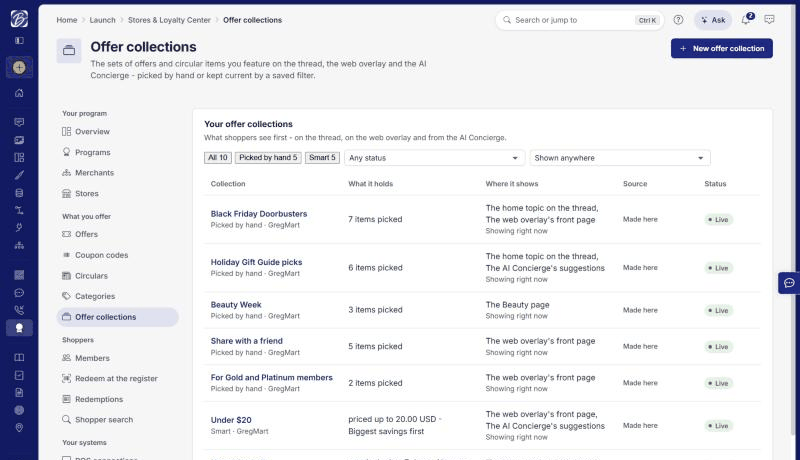
- Your offer collections. One row for each collection: its name, whether it is Picked by hand or Smart, and whose it is; What it holds - how many items were picked, or a smart collection's rules in a sentence; Where it shows, and whether it is showing right now; where it came from; and its status: Draft, Live, Paused or Ended.
- The filters. Show All collections, only those picked by hand, or only smart ones, and narrow the list by status or by where a collection shows.
- A collection's page. About the offer collection, Where it shows and When it shows; Its art and Your note are folded under a one-line summary - select one to open it. A collection picked by hand then lists Its items. A smart collection shows Its rules, with the rules in one sentence beside them, and What it matches now.
- The unsaved-changes bar. When you change something, a bar appears at the bottom of the page: You have unsaved changes, with Reset and Save. It is gone when there is nothing to save.
What you can do
Make an offer collection
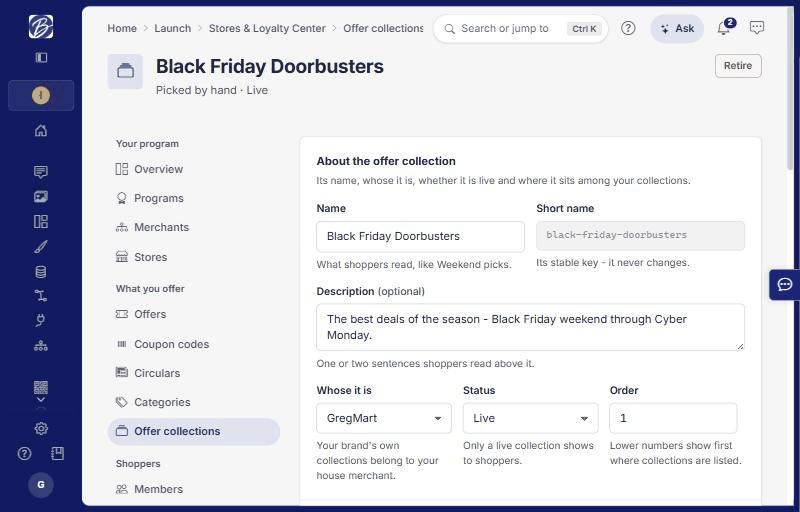
- Select New offer collection.
- Type the Name shoppers read. Converse fills in the Short name from it, which never changes once the collection is made.
- Choose how it is filled: Picked by hand, or Smart, where rules choose for you.
- Choose Whose it is. Your brand's own collections belong to your house merchant.
- Select Make the offer collection. It opens on its own page as a draft that shows nowhere yet.
Choose where and when it shows
- On the collection's page, under Where it shows, tick The home topic on the thread, The web overlay's front page or The AI Concierge's suggestions.
- To show it on a category's page, choose the category under Category pages. Take one away with the cross beside its name.
- Under When it shows, set Shows from and Shows until in your own time, or leave both empty to show it as soon as it is live.
- Set the Status to Live, and select Save in the bar at the bottom of the page. A collection with nowhere ticked is a draft no shopper sees.
Give it art and a note
- Open Its art, select Choose a file and pick a picture from your library, upload a new one or take a free stock photo - or paste a picture's https address. The picture shows beside the field at once; Remove takes it off.
- Open Your note to write a note only your team reads.
- Select Save in the bar at the bottom of the page.
Pick and order a collection's items
- On a collection picked by hand, find Add items.
- Choose whether to search Offers or Circular items, type some Words to find, and select Search.
- Select Add beside each item you want. It joins the end of the list.
- Drag an item to a new place, or use the arrows beside it to move it up or down. Select the cross to take an item out.
- Select Save the items. Select Reset instead to put the list back as it was.
An item marked Shoppers cannot open it now is in the collection but not showing, for example a draft offer or an item from a circular that has ended.
Set a smart collection's rules
- On a smart collection, find Its rules. Only the rules you have set are shown; a new smart collection shows just its Order and How many it holds, and holds everything published.
- To narrow it, choose a rule from Add a rule. The rules are grouped by what they ask: what it is (Categories, Merchants, What kind of thing, What it gives), where it can be used (Stores, Where it can be used), how much it saves or costs (How much it saves, Price), when (Dates) and Words it must mention. A category or a merchant includes everything beneath it.
- Set the rule. Select the cross at the end of a rule to take it out again.
- Choose the Order it keeps, such as Biggest savings first, and How many it holds.
- The rules read as one sentence beside them, so you can check what you built at a glance. If a rule needs a fix, a note right under that rule says what to change.
- Read What it matches now to see what the rules find among what is published today. Select Look again to check it after offers change.
- Select Save in the bar at the bottom of the page.
Retire a collection
- On the collection's page, select Retire, then confirm with Retire.
- The collection stops showing everywhere. Its items stay as the record of what it featured.
How it fits
A member who opens your conversation on their phone sees the collections you placed on the home topic first, as a carousel, and the web overlay's front page shows its own. A collection placed on a category's page appears when a shopper browses that category, and the AI Concierge can suggest the collections you place with it. Smart collections use the same rules as shopper search, so what a smart collection holds is exactly what a shopper would find with the same filters. Categories are set on the Categories page.
Good to know
- Where a collection shows is a decision for the whole brand, so only people who run the Stores & Loyalty Center for the whole workspace make and change collections. Someone who works for one merchant sees that merchant's collections, and someone who only redeems at the stores can read them.
- A smart collection is shown to everyone, so its rules never ask about one shopper, such as what they clipped or a store near them.
- What it matches now looks across every program and shows only what is published. A draft offer joins the collection when it is published.
- A collection brought in from another system and owned by it keeps its fields read-only here. You can still write Your note.
- An item that is no longer in your lists, such as one from a circular that has ended, is said so by name: "A circular item that is not in your lists".
- "Collection" means two things in Converse. Offer collections live here, in the Stores & Loyalty Center. Collections of experiences, which send people a series of conversations, are built under Design.
Related pages
- Stores & Loyalty Center: the overview, your programs and how the Stores & Loyalty Center fits together.
- Categories: the category tree your offers and circulars are filed under, and where each one is filed.
- Launch codes: the QR codes and short links that open the conversation where collections show.