
Merchant redemption guide - redeeming coupons and rewards at the till
Who this is for. The people who take a shopper's coupon, deal or reward at a store: the person at the till, and the store manager who looks after the team and reads back what was used.
The tool is the till on the store's phone. Store staff redeem on the till at go.rcsbuilder.com/redeem - a plain web page on any phone, with nothing to install, that opens in a moment even on a weak signal. This guide walks it step by step, from signing in to an undo, and ends with the store's usage report, the desk for a counter computer, and a table of what to do when something goes wrong.
What you need. A phone at the till with a web browser, and either a Listrak Converse sign-in with the redeemer role at your store, or a phone your manager has paired with the store and a PIN of your own (sections 2a and 2b). A barcode scanner is optional: the till reads codes with the phone's camera, and a scanner that types what it reads works as it is. The pictures were taken on the real till at a store of GregMart, Listrak's made-up store; Jordan Rivera is GregMart's made-up member, and the redemption shown was undone a minute later.
How redeeming works, in one paragraph
A shopper shows you something - a coupon on their phone, their member card, their member number or their phone number. You scan it or type it into one field, and Converse finds the shopper and everything they hold. For the coupon they want to use, Converse checks it against your store, today's date and the basket, and tells you in plain words whether it can be used. When it can, you tap Redeem, and Converse records the use exactly once: the same coupon can never be used twice, even if the button is tapped twice or the connection drops halfway. Every redemption appears in Today at this store on the till and on the store's usage report in the Portal, where it can be read, downloaded or undone.
Before you start: who can redeem
Two things let you use the till, and your Loyalty manager can set up both:
- A loyalty role. You need the Store redeemer role (or Loyalty manager). Someone who manages users in your workspace gives it to you on the Users page.
- Your store's merchant. In the Stores & Loyalty Center every store belongs to a merchant - a brand, a department or a franchise. You need the redeemer role, or a stronger one, at your store's merchant. Your Loyalty manager gives you that access on the merchant's page, with Give someone reach. Access to a merchant covers every merchant beneath it, and a person who works across the whole workspace can redeem at every store.
If one of these is missing, the till tells you calmly instead of opening. "The till is closed to you" means your account does not hold a till role. "You don't redeem at any merchant" means you hold no redeemer access yet. "No store to redeem at" means none of the stores you reach is set up, or you are not a redeemer at its merchant. In each case, ask your Loyalty manager.
The till shows you what the register needs and keeps the rest private. Only the workspace's Loyalty manager sees a member whole; everyone else sees the member's number, first name, tier and balance and what they can use, while their phone, email and birthday stay hidden. The member card says so: "You see what the register needs. Their phone, email and birthday stay private."
1. Open the till on the store's phone
- On the phone you keep at the till, open go.rcsbuilder.com/redeem in the browser. In the Portal, Redeem at the register shows a QR code for the same address: select Open the till on your phone, or scan it.
- Add the till to the home screen, so it opens from its own icon like an app. On an iPhone, tap the share button and choose Add to Home Screen. On an Android phone, open the browser menu and choose Add to Home screen, or Install app.
The till speaks English, Spanish, German and French. It follows the phone's language, and the language picker at the top changes it. It follows the phone's light or dark mode too.
2. Sign in and choose your store
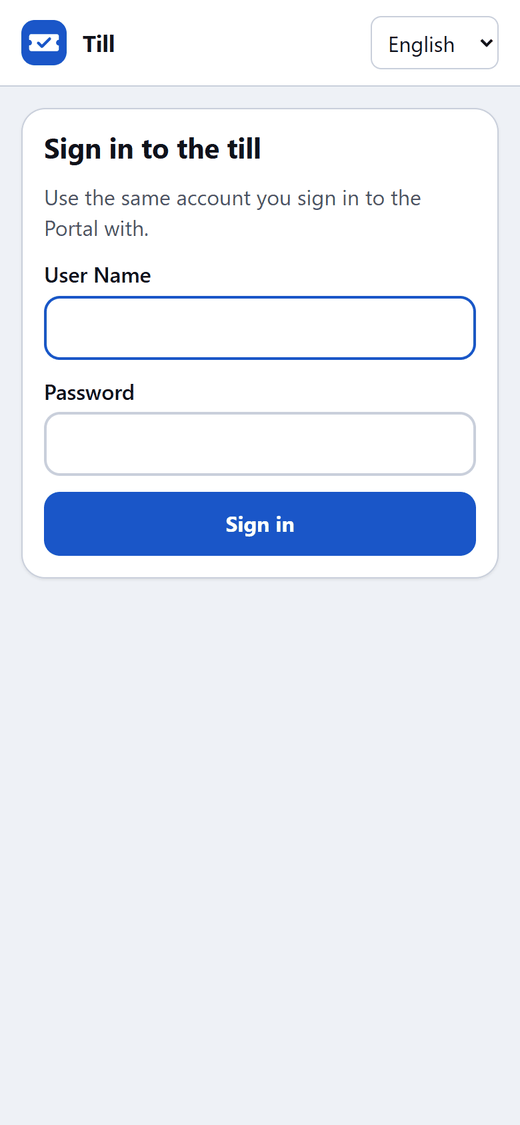
Picture 1. The till opens on its sign-in. It uses the same account you sign in to the Portal with.
- Enter your User Name and Password and select Sign in.
- A one-time code keeps the till safe. If your account has more than one phone or email, choose where it should go and select Send my code. Enter the code you receive and select Verify.
- If your account belongs to more than one workspace, choose the one whose stores you redeem for.
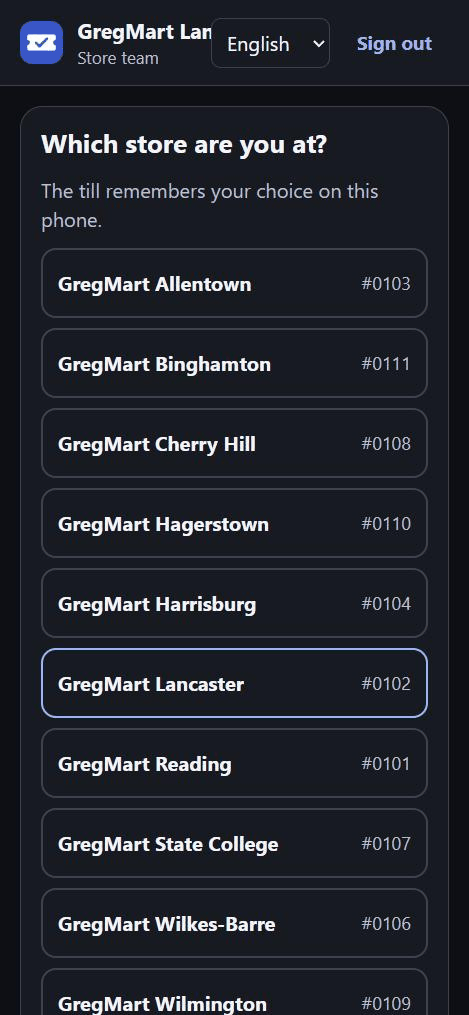
- The first time, the till asks Which store are you at? Select your store. It lists only the stores you may redeem at, and it remembers your choice on this phone. To switch later, select Change store.
| Which store are you at? | Ready for the first shopper |
|---|---|
 |
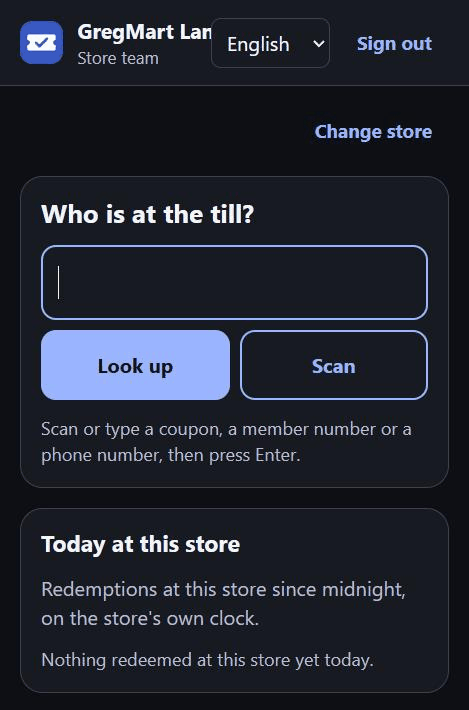 |
Picture 2. Choose your store once, and the till is ready: one field for whatever the shopper shows, and today's redemptions at this store below it.
The till stays signed in while the page is open. When you close the page or select Sign out, it forgets you, and your password is never kept on the phone. If the till says "Your session has ended", sign in again to keep redeeming.
2a. Pair a store phone (for managers)
A store can keep a phone at the till that is paired with that one store, so the team redeems on it without signing in to a Portal account on it. Pairing is done by a person who is a Loyalty manager and owner at the store's merchant, or who works across the whole workspace.
- In the Portal, open the Stores & Loyalty Center and select Devices.
- Select Pair a phone, pick the Store, type a Phone name such as Front counter, and select Get a pairing code. The page shows a code in large letters, its QR, and how long it still works.
- On the store's phone, open go.rcsbuilder.com/redeem, select Pair this phone, and either select Scan the QR and point the camera at the Portal's QR, or type the code into Pairing code. Scanning the QR with the phone's own camera app opens the till with the code already filled in.
- On the phone, select Pair this phone. In the Portal, select Done - the phone now appears under Paired phones.
A code works once, for ten minutes; New code makes another. The phone then opens straight into the till for its store every time, with no Change store - it redeems at that store and nowhere else, and it cannot open settings or look at other stores. To stop a phone, select Revoke beside it on Devices; it is signed out the next time it is used. On the phone itself, Unpair this phone does the same. Clearing the browser's data on the phone unpairs it too.
2b. Clerks and PINs
On a paired phone, each clerk can sign in with a short PIN instead of an account, so every redemption says who made it.
- On Devices, under Clerks, select Add a clerk.
- Type the clerk's name under Clerk, pick their Store (or Every store), and type a PIN of 4 to 6 digits. A PIN cannot be one digit repeated or a straight run like 1234.
- Select Save, and tell the clerk their PIN - it is never shown again.
Once a store has a clerk of its own, its paired phones ask Sign in to the till before anything else: the clerk taps their name, types Your PIN and selects Sign in. The door at the top right signs the clerk out and leaves the phone paired for the next one. After too many wrong PINs the till asks the clerk to wait a few minutes. Reset PIN sets a new one at once, and Revoke takes a clerk's PIN away - a phone they are signed in on asks for a PIN the next time it is used. Revoking a store's last clerk does not switch PINs off: its phones keep asking until you add another clerk, so taking a PIN away never leaves the till open. A clerk for Every store can sign in wherever a store asks, but does not make a store ask. A store that has never had a clerk of its own redeems as the phone alone.
An AI assistant can list a store's phones and clerks and revoke them, but it never pairs a phone or sets a PIN - those are always a person's choice.
3. Find what the shopper shows you
Who is at the till? is one field for everything a shopper might show you:
- A coupon's QR code - scan it from their phone. The till goes straight to that coupon.
- A coupon code - scan its barcode or type it.
- Their member card in a phone's wallet (Apple Wallet or Google Wallet) - scan its code. It carries their member number.
- A member number - type it from their card.
- A phone number - type it with its country code. A 10-digit US or Canadian number works as it is. When your workspace runs more than one program, the till asks for the program first, because a phone number is looked up within one program.
To look something up:
- To use the phone's camera, select Scan and point it at the code. The till reads it by itself - QR codes and printed barcodes - and looks it up. If a code won't read, hold the phone a little further back so the whole code fits in the frame, or type the number printed under it. A handheld scanner works too: it types into the field and presses Enter for you.
- To type it, enter it in the field and select Look up, or press Enter.
- If the till finds nothing, it says so and may offer other ways to read what you typed, such as Look it up as a coupon code instead. Select the one that fits.
- When you looked up a member, their card shows their name, member number, status, points balance, tier and visits. Under What they hold you see every coupon, deal and reward in their wallet, judged for your store right now: what can be used comes first, then what needs a check at the till, then what can't be used today, with the reason.
- Select Use this beside the item the shopper wants. Pick another takes you back.
4. Check the coupon against the basket
| The member, and the coupon | Check, then Redeem |
|---|---|
 |
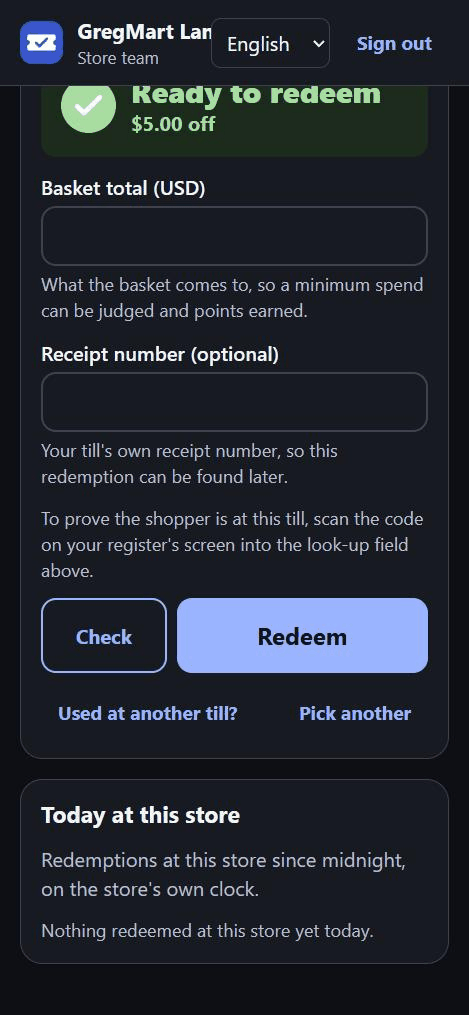 |
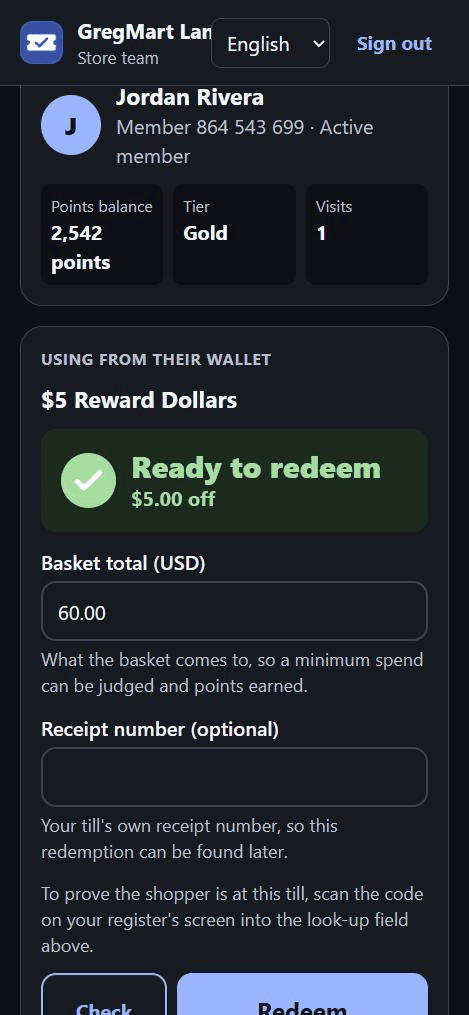
Picture 3. The coupon you are using, its answer in a large banner, the basket and the receipt number, then Check, Redeem, Used at another till? and Pick another.
Once you pick an item (or scan a coupon), the till shows what you are using - Using from their wallet, or Using a code when you scanned a code on its own - with the offer's name and the answer in a large banner.
- Read the banner. It is one of three, described in the next section.
- Type the Basket total when you have it. The currency comes from the offer, for example "Basket total (USD)". The basket lets Converse judge a minimum spend, and it is how points for the purchase are worked out.
- Press Enter in the basket, or select Check, to ask again with the basket. Check never uses anything.
- If your register shows a code on its screen, scan it into the look-up field at the top - not into the checkout. The till recognizes it ("That was your register's own code. It is kept below to prove the shopper is at this till.") and keeps it as proof of the visit. Some offers need this proof. Remove takes it off.
- Add your till's Receipt number if you want to find this redemption later. It is optional.
What the check says
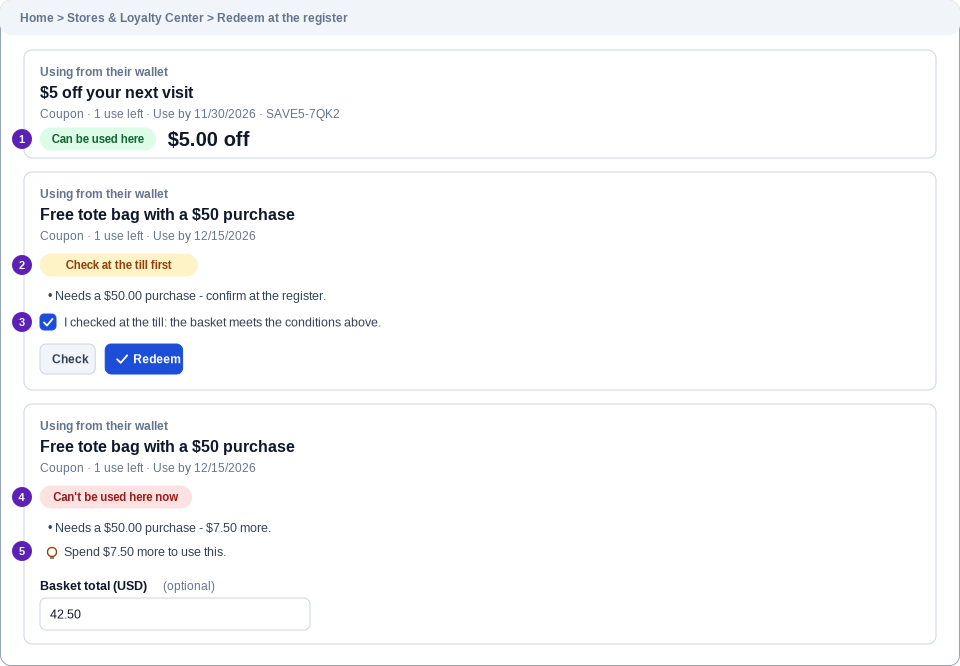
Picture 4. The three answers, drawn here on the Portal's desk - the till says them in the same words. (1) "Can be used here", with what it gives. (2) "Check at the till first", with what to check. (3) The box you tick once you have checked. (4) "Can't be used here now", with the reason. (5) The next step, when there is one.
- Ready to redeem (the list under What they hold, and the desk, say Can be used here). Everything checks out. The amount it takes off, such as "$5.00 off", is shown with it when the offer gives one.
- Check at the till first. Something about this offer can't be seen from here - for example, a minimum spend before you have typed the basket, or a coupon that is only for certain products. Check it with the shopper. Then tick "I checked at the till: the basket meets the conditions above." and Redeem goes ahead.
- Can't be used here now. Converse lists the reasons, and often the next step, such as "Spend $7.50 more to use this." Nothing has been used. Tell the shopper why, in the words on screen.
The reasons come from the offer's own rules and are written for the shopper, so you can read them out. Here are the ones you will see most often:
| The reason on screen | What it means at the till |
|---|---|
| "Not valid at this store." | The offer runs at other stores only. |
| "Starts Fri Nov 20." / "Ended Sun Nov 1." | The offer is outside its dates. |
| "Valid Sat, Sun only." / "Valid 9:00 AM to 12:00 PM." | The offer runs on certain days or hours. |
| "Needs a $50.00 purchase - $7.50 more." | The basket is below the minimum spend. |
| "Needs 2 qualifying items - add 1 more." | The basket needs more of the right items. |
| "Only on pastries - confirm at the register." | Check that the basket holds the right products, then tick the box. |
| "Already used." / "No uses left." / "This has expired." | The coupon in the wallet is spent or past its date. |
| "You've already used this." / "Once a day - come back tomorrow." | The member has reached the offer's limit. |
| "Can't be combined with the other offer in this purchase." | Only one of these offers works in one purchase. |
| "For gold members." | The offer is for a higher tier. |
| "Needs 500 points - 120 more." | A reward the member can't afford yet. |
| "Use this at the register - scan the register's code." | The offer needs proof of the visit: scan the code on your register's screen into the look-up field. |
5. Redeem
- When the banner says Ready to redeem - or you have ticked the box for Check at the till first - tap Redeem.
- The phone gives a short buzz, where it can, and shows the receipt. Its title says Redeemed, and the line under it says what it gave, such as "$5.00 off, recorded."
- Take the discount at your till, then scan the next shopper's coupon or select Next shopper.
Pressing Enter never redeems: only the Redeem button does. A scanner ends every scan with Enter, so this keeps a scan from using a coupon before you have read the answer.
| Redeemed, and the points | The receipt |
|---|---|
 |
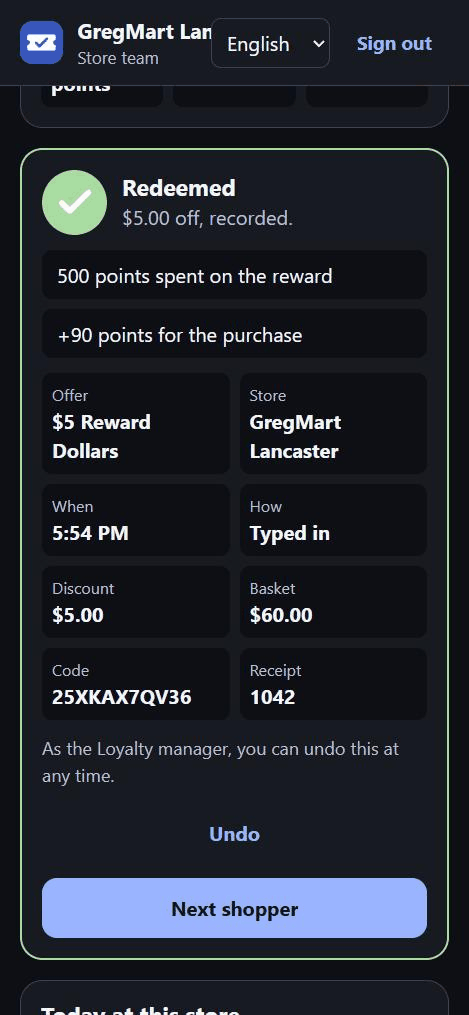 |
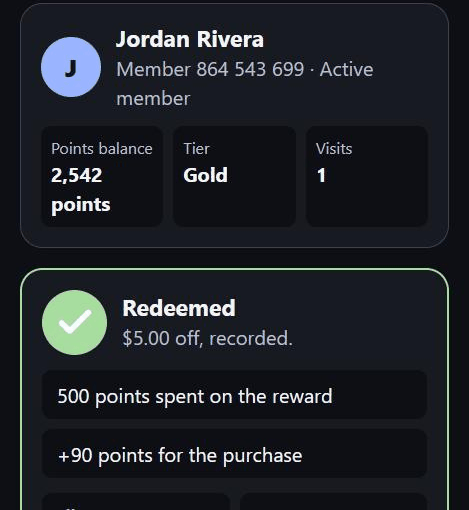
Picture 5. The receipt: what it gave, the points it wrote, and everything the redemption recorded, with Undo and Next shopper.
The receipt records the offer, the store, when, how it was shown (typed in, scanned, and whether the register's code proved the visit), the discount, the basket, the code and your receipt number. Above them, the till says what else happened to the member's points - here "500 points spent on the reward" and "+90 points for the purchase". The redemption also appears at the top of Today at this store.
Tip: When you work for one merchant, typing the basket lets Converse judge a minimum spend, but it does not earn the shopper points for the purchase. The receipt says so: "No points for the purchase: they are earned only when your own till, a paired register or your Loyalty manager records the basket."
Record a coupon already used at another till
Sometimes a coupon was already scanned by your own till system, and you only need Converse to know it is spent.
- Look the coupon up, then select Used at another till?.
- Under Record a use made at another till, type the discount your till gave, if it shows one.
- Select Record the use. Converse records the use so the coupon cannot be used again, and gives no discount itself. The receipt says Use recorded.
Take an amount from a gift certificate
A gift certificate is spent like cash, by whoever holds it, a little at a time.
- Scan the barcode or QR code on the certificate, or type its code. The till shows Gift certificate and what is left on it. No shopper is named, because whoever holds the code spends it.
- Under Amount to take, type how much to take from it, or leave it blank to take the smaller of what is owed and the balance.
- Select Redeem. The receipt says what is Left on the certificate, and the rest stays on it for next time.
A gift certificate earns no points and takes no coupon. If the shopper is a member, scan their own member card as well for their points. A certificate that was passed on, refunded or spent in full says so instead of a balance, and nothing is taken. Gift certificates has the whole story.
6. If the connection drops, it is safe to try again
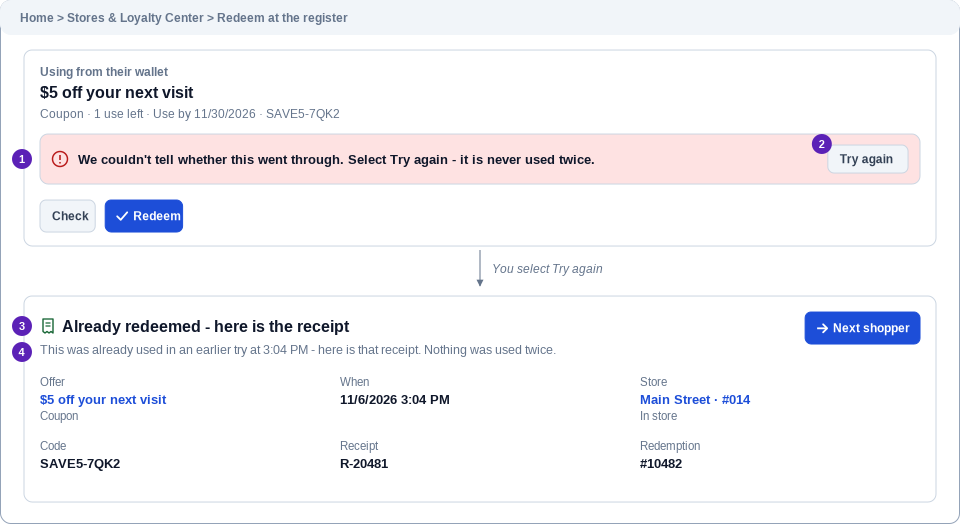
Picture 6. Drawn here on the Portal's desk - the till says the same. (1) Converse could not tell whether the redemption went through. (2) Try again sends the same attempt. (3) The answer when the first try had landed: the receipt of that first try. (4) The time of the first try, and "Nothing was used twice."
Every redemption you start is one attempt with its own reference, and Converse counts an attempt once, however many times it reaches the server. So when the connection drops or the answer gets lost, nothing is lost and nothing is doubled.
- When you see "We couldn't tell whether this went through. Select Try again - it is never used twice.", select Try again.
- If the first try had gone through, you see its receipt: "Already redeemed - here is the receipt", with the time of the earlier try and "Nothing was used twice."
- If the first try had not gone through, the coupon is redeemed now, and you see a normal receipt.
This holds even if you look the coupon up another way, switch the store, or record it as used at another till instead: as long as the page stays open, the till sends the same attempt and shows you the receipt of the try that landed. If an earlier try was turned down, the till says "An earlier try was turned down and nothing was used. You can try again."
Tip: While the till says it couldn't tell, keep the page open and use Try again. Reloading the page forgets the attempt. A coupon with one use is still never used twice - the next try simply finds it already used - but a coupon with several uses could take a second one. The till needs the network for every look-up and every redemption, by design: a use must be recorded exactly once.
7. Undo a redemption
| Undo, with a reason | Undone |
|---|---|
 |
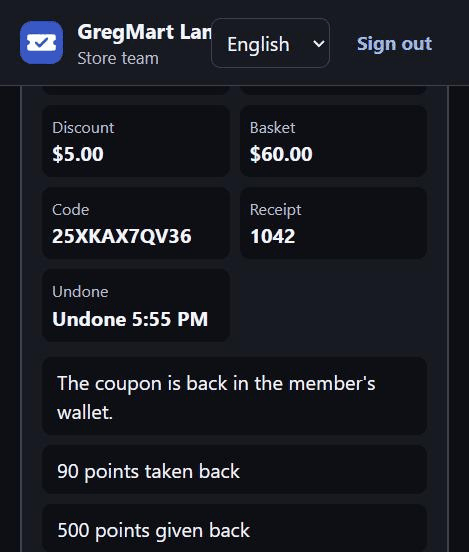 |
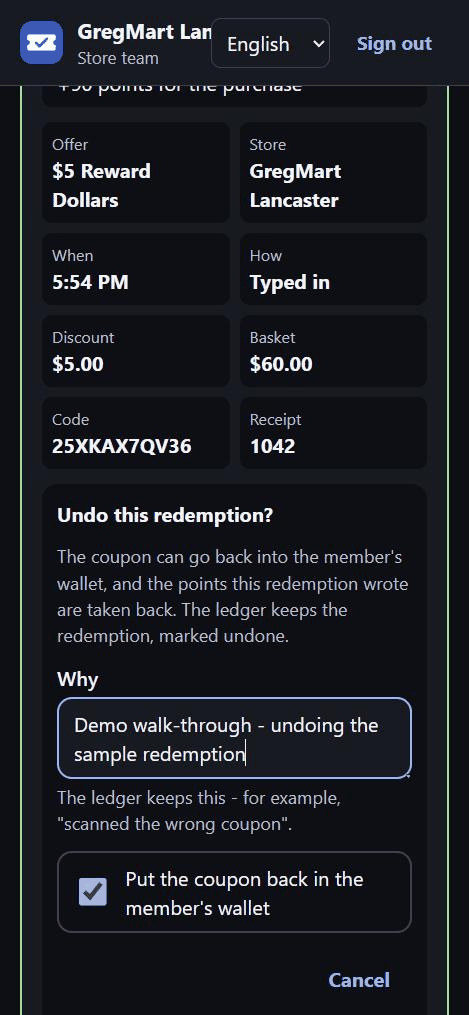
Picture 7. An undo says why, gives the coupon back, takes back the purchase's points and gives back the points the reward spent.
Undo is for a mistake, such as scanning the wrong coupon or redeeming for the wrong shopper.
- Who and when. For 10 minutes after a redemption, anyone who may redeem at that store's merchant can undo it from the receipt. After that, only your Loyalty manager can undo it, at any time - on the receipt the Loyalty manager sees "As the Loyalty manager, you can undo this at any time."
- What it does. The redemption stays on the record, marked Undone, with when and why. The points it wrote are reversed - the purchase's points taken back and the reward's points given back - and, when you choose, the coupon goes back into the member's wallet so they can use it again.
- On the receipt, select Undo. The line beside it says how many minutes are left, for example "You can undo this for 9 more minutes."
- Under Why, say what went wrong, such as "Scanned the wrong coupon". The ledger keeps the reason, so this is required.
- Leave Put the coupon back in the member's wallet ticked to give the coupon back, or clear it to keep the coupon used.
- Select Undo the redemption. The receipt says Undone and what it did, such as "The coupon is back in the member's wallet.", "90 points taken back" and "500 points given back".
The till undoes from the receipt. To undo a redemption after you have moved on, your Loyalty manager opens it from Redemptions in the Portal and selects Undo on its page. Once the 10 minutes have passed, the receipt says "The register's 10 minutes to undo this have passed. Your Loyalty manager can still undo it." - ask them.
8. Today at this store
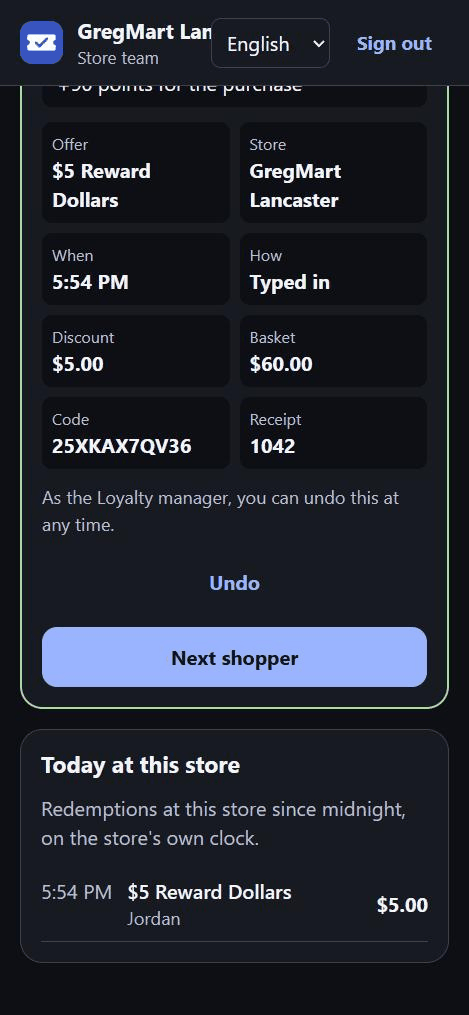
Picture 8. Today at this store, under the receipt.
Today at this store lists each redemption at your store since midnight, on the store's own clock, the latest at the top: the time, the offer, the shopper's first name or member number, and what it gave. A redemption that was later undone is struck through and shows Undone instead of an amount. When the store is busy, the till shows the latest 50; the full day is on the usage report.
9. A code that leaked
A coupon code is meant for one member, so a code that has been shared online or copied can be used by people it was never meant for. Your Loyalty manager can switch such a code off for good by voiding it, in the Portal.
A leaked code is voided even when a member's coupon still holds it, because stopping the leak comes first. Voiding has one consequence the manager must handle: that member's coupon then works at no till, because no till will take the code it carries. To keep the member whole, the manager gives them a new coupon.
The manager does this on Coupon codes in the Stores & Loyalty Center (store staff can look a code up there too, but only a Loyalty manager at the offer's merchant can void one):
- Under Look up a code, type or scan the code and select Look it up. The page shows its offer, its pool, whether it is free, given to a member, used or void, and when.
- Select Void this code and read the question. When a member's ready coupon holds the code, it asks: "Void a code that a member's ready coupon holds? Do this only if the code leaked - afterwards no till takes that member's coupon."
- Confirm with Void this code. From now on every till refuses the code, and nothing is used.
- To give the member a working coupon, go to their wallet: select Open their wallet when the page offers it, or find the member on Members and open the Wallet tab. Open the old coupon and select Take it back, then select Put an offer in their wallet to issue a new one with a new code.
If a leaked code was redeemed at your till by someone it wasn't meant for, undo that redemption within its 10 minutes, or ask your Loyalty manager to undo it.
10. The store manager's usage report
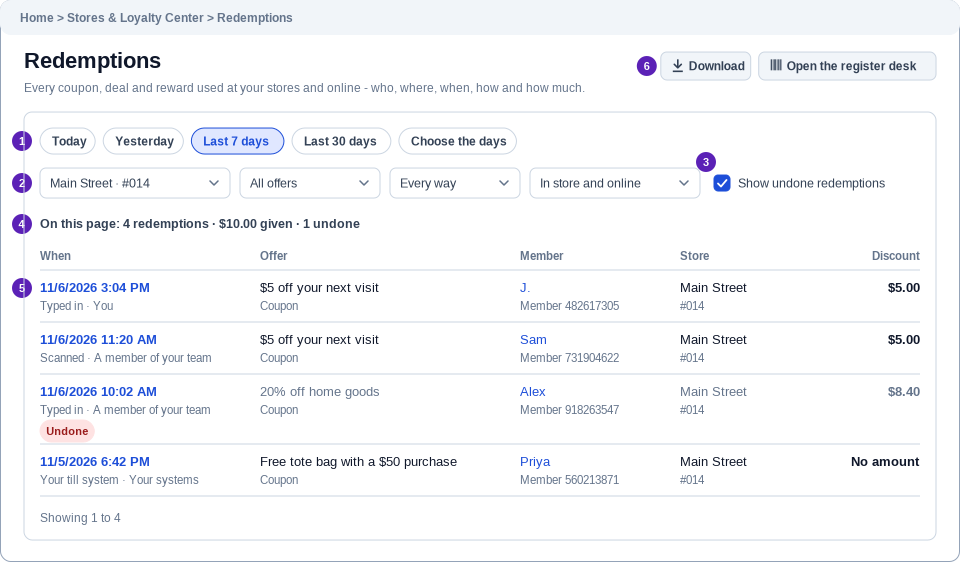
Picture 9. (1) The days to read. (2) The filters - here, one store. (3) Show undone redemptions adds the ones that were undone. (4) The totals for the rows on the page. (5) Each row's time opens that redemption. (6) Download saves every redemption that matches as a CSV file.
Redemptions, in the Stores & Loyalty Center in the Portal, is the usage report: every coupon, deal and reward used at your stores and online, with who used it, where, when, how and what it gave. It is the list a merchant asks for at the end of the month.
- In the Stores & Loyalty Center, select Redemptions under Shoppers.
- Choose the days: Today, Yesterday, Last 7 days, Last 30 days, or Choose the days for a From and To of your own. Days are in your own time.
- Narrow the list with the filters: a store (All stores to start), an offer (All offers), how it was used (Every way) and where (In store and online). Tick Show undone redemptions to include the ones that were undone, marked Undone.
- Read the totals line above the list, for example "On this page: 4 redemptions · $10.00 given · 1 undone". It counts the rows on the page, with each currency on its own, and undone redemptions give nothing.
- Select a row's time to open the redemption and read everything it recorded. Use Previous and Next to page through. When nothing matches, Clear the filters starts over.
- Select Download to save the list as a CSV file you can open in a spreadsheet. Converse reads every redemption that matches your days and filters - not just the page on screen - up to 50,000 in one file, with times in your own time and in UTC. It tells you how many it saved.
Each row says how the use was made - Typed in, Scanned, Your till system, Marked used by the member and so on - and by whom: You, A member of your team, a register, Your systems or The member. A merchant's own staff see only their merchants' redemptions. Your Loyalty manager can undo a redemption from its page at any time.
11. At a counter computer
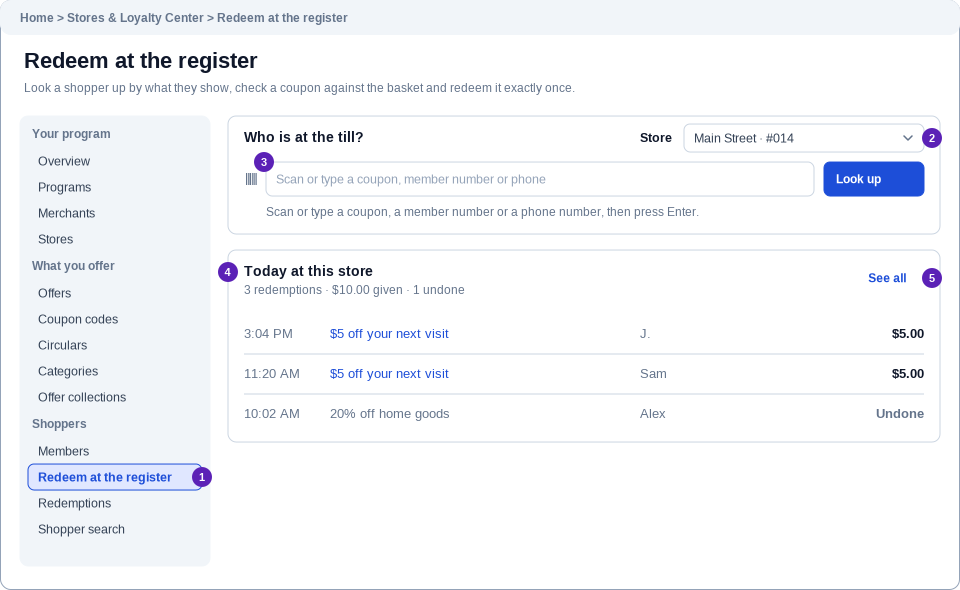
Picture 10. The Portal's desk: (1) Redeem at the register under Shoppers in the left menu. (2) The store you are redeeming at. (3) The look-up field, where every scan and every typed number goes. (4) Today at this store. (5) See all opens the store's full usage report.
The phone till is how most stores redeem. Where a store keeps a computer at the counter with a scanner that types what it reads, the Stores & Loyalty Center's Redeem at the register page is the same desk on that computer: the same look-up field, the same checks and words, the same exactly-once rule, undo within 10 minutes and Today at this store.
- In the Portal, open the Stores & Loyalty Center and select Redeem at the register under Shoppers.
- If you work at more than one store, choose yours under Store; the desk remembers it on this computer. When your workspace runs more than one loyalty program, a Program list appears beside it for looking a shopper up by phone.
- The cursor waits in the look-up field, and comes back there after every look-up and every receipt, so you can work the counter with a scanner: scan, read, redeem, scan the next shopper. Then follow steps 3 to 7 above - the desk works the same.
On the desk, a redemption you have moved on from can be undone from Today at this store or the usage report. From a member's page in Members, Open the register desk opens the desk with that member already looked up, and Open the till on your phone with its QR code takes the same desk to a phone.
If something goes wrong
| What you see | What it means | What to do |
|---|---|---|
| "The till is closed to you" | Your account has no till role in this workspace. | Ask your Loyalty manager for the Store redeemer or Loyalty manager role, then sign in again. |
| "You don't redeem at any merchant" | You hold no redeemer access yet. | Ask your Loyalty manager for the redeemer role at your store's merchant. |
| "No store to redeem at" | None of the stores you reach is set up for you. | Ask your Loyalty manager to add your store, or to give you the redeemer role at its merchant. |
| "That user name and password don't match. Check them and try again." | The sign-in details are wrong. | Check them and sign in again - it is the same account as the Portal. |
| "That code isn't right." / "That code has expired." | The one-time code is mistyped or too old. | Type it again, or select Send a new code. |
| "Too many tries. Wait a minute, then try again." | A limit that protects your account. | Wait a minute, then sign in again. |
| "Your session has ended. Sign in again to keep redeeming." | The till's sign-in ended. | Sign in again. |
| "The camera couldn't be opened." | The browser has not been allowed to use the camera. | Allow the camera for this page in the browser, or type the code. |
| "This phone's browser can't read codes with the camera yet." | The browser cannot read codes. | Type the code, or use a scanner. |
| "Choose the program first - a phone number is looked up within one program." | Your workspace runs more than one program. | Choose the program, then look the phone number up again. |
| "No member matches. Check the number or phone, then look them up again." | Nothing matched what you typed. | Check the number. Try Look it up as ... instead if it is offered. |
| "No code of this workspace has that value. Check it and type it again." | The code is mistyped, or it belongs to another business. | Type it again carefully, or scan it. |
| "That QR is not one of this workspace's coupons, or it has expired. Scan it again or type the code." | The QR is old or not one of yours. | Scan it again, or type the coupon's code. |
| "That QR is a member card. Look the member up, then pick what they want to use." | The shopper showed their member card, not a coupon. | Pick the item under What they hold and select Use this. |
| "That register code has changed or belongs to another store. Scan the one on the screen now." | The register's code changes regularly. | Scan the code on your register's screen again. |
| "Being at the store is shown, not stated - scan the code on the register's screen." | This offer needs proof that the shopper is at your till. | Scan the register's code into the look-up field, then tap Redeem again. |
| "Some of this offer's conditions cannot be checked here. Check them with the shopper, then confirm." | The answer was Check at the till first. | Check the conditions, tick the box, then tap Redeem. |
| "This needs the basket total - points for a purchase and money drawn from a stored value are worked out from it, never guessed." | This offer needs the basket. | Type the Basket total, then tap Redeem again. |
| "Type an amount, like 45.99." | The basket total isn't a number Converse can read. | Type the amount as a plain number, such as 45.99. |
| "The member cannot use this offer here right now - the reasons are shown with it." | The check says Can't be used here now. | Read the reasons out to the shopper. Nothing was used. |
| "This cannot be used now - it is used up, expired, outside its dates or short of balance. Someone may have used it first." | The coupon was spent or expired, perhaps a moment ago at another till. | Look the shopper up again to see what they still hold. |
| "That code belongs to an offer that is paused, ended or retired, so it cannot be used now." | The offer is no longer running. | Tell the shopper the offer has ended. |
| "The member does not have enough points for this." | A reward costs more points than they hold. | Show them their balance on the member card. |
| "We couldn't tell whether this went through. Select Try again - it is never used twice." | The answer was lost on the way back. | Select Try again. Keep the page open. |
| "This use may have gone through, but its record is not finished. Select Try again to finish it - it is never used twice." | The use landed but its record is incomplete. | Select Try again to finish it. |
| "This may already have been used in an earlier try. Select Try again to see that receipt." | An earlier try of this attempt landed. | Select Try again to see that receipt. |
| "Too many members were looked up from here this minute. Wait a minute, then look the member up again." | A limit that protects members' details. | Wait a minute, then look the member up again. |
| "That belongs to a merchant you don't work for, or needs a stronger role there." | The offer or store belongs to another merchant. | Ask your Loyalty manager whether you should redeem it. |
| "Say why it is being undone - the ledger keeps the reason." | Why is empty on the undo panel. | Write a short reason, then select Undo the redemption. |
| "The time to undo this at the register has passed. Ask the store's manager or a Loyalty manager." | The 10 minutes have passed. | Ask your Loyalty manager to undo it from the redemption's page. |
| "This redemption was already undone." | Someone undid it already. | Nothing more to do - it shows as Undone on the report. |
| "Some points could not be added just now. Your Loyalty manager can add them." | The redemption stands, but some points are owed. | Tell your Loyalty manager, who can add them on the member's page. |
| "Couldn't reach Listrak Converse. Check your connection and try again." | The phone lost its connection. | Check the signal or the Wi-Fi, then select Try again. |
| "That code did not work - it may be used or out of date. Ask for a new one." | The pairing code was spent, ran out or was mistyped. | Ask your manager for a New code on Devices. |
| "That PIN did not work." | The clerk's PIN is wrong. | Type it again, or ask your manager to Reset PIN. |
| "Too many tries. Wait a few minutes, or ask a manager." | Too many wrong PINs on this phone. | Wait a few minutes, or ask your manager to set a new PIN. |
| "Nobody can sign in at this store yet. Ask a manager to add a clerk." | The store's clerks were all revoked, so nobody's PIN works here. | Ask your manager to add a clerk on Devices. |
| "This phone is no longer paired with a store. Ask a manager to pair it again." | The phone was revoked or unpaired, or its store was closed. | Ask your manager to pair it again on Devices. |
Related reading
- The till on your phone - the clerk's page for the till, with the demo till anyone can try.
- Paired phones and clerks - the Portal's Devices page, step by step.
- The demo walk-through - the till screen by screen, beside the rest of the loyalty system.
- Redeem at the register and Redemptions have their own page guides in the Portal: select ? on either page.
- Coupon codes - the code pools behind your offers, and how a Loyalty manager loads and voids codes.
- Members - a member's wallet, points and visits, and Open the register desk for that member.