
Listrak Stores & Loyalty - the demo walk-through
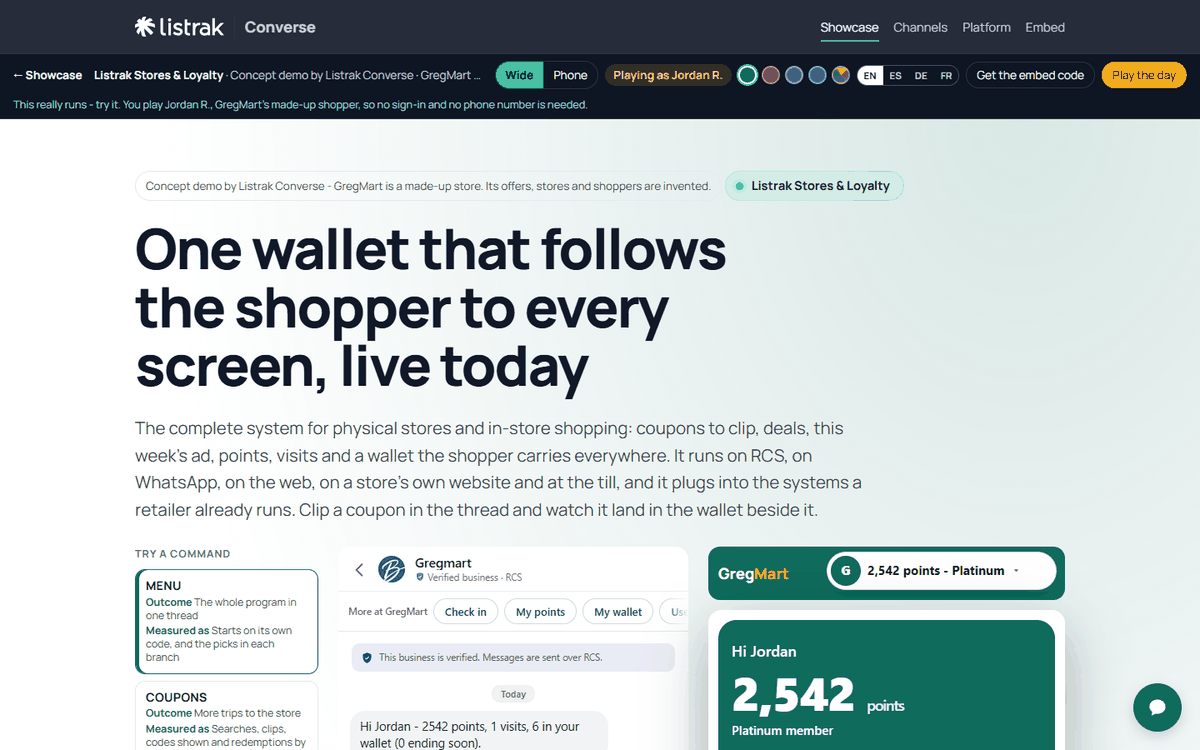
Picture 1. Listrak Stores & Loyalty as it opens at go.rcsbuilder.com/discover/stores-and-loyalty/.
This walk-through takes you through Listrak Stores & Loyalty, the Showcase's live demo of the whole loyalty system, one stop at a time. For each stop it says what to tap, what happens and what it proves, with a picture of what you will see. The demo runs on GregMart, Listrak's made-up store, and everyone who opens it plays the same made-up shopper, Jordan R., so nothing you do touches a real customer. The pictures were taken on the live page; your screen may show different coupons or a different points balance, because the demo is live.
Who it is for
- Sales and solutions teams who demo the loyalty system to a retailer, a restaurant group or a partner, live or on a call.
- A brand's own team - the loyalty, digital and store-operations people - who want to see what their shoppers and their store staff would see before a project starts.
- A partner or prospect walking it alone, at their own pace, with this guide beside the page.
The guide has three parts. Chapter 1 walks the showcase page, stop by stop. The redemption app walks the till on a phone at go.rcsbuilder.com/redeem, the tool a store's staff use at the counter every day. Chapter 2 walks the Stores & Loyalty Center in the Portal, where a brand's team sets the program up and runs it, screen by screen.
Before you start
- A computer with a wide screen shows the page at its best: the conversation, the wallet and the store's website side by side. The page also works on a phone, one live piece at a time.
- Five minutes for the presenter's path below, about thirty for the whole page.
- The address: go.rcsbuilder.com/discover/stores-and-loyalty. There is no sign-in and no phone number to enter. You can also reach it from the Showcase's front page.
- Your own phone, if you want to show the real handset. The page's Text it to my phone buttons start the same conversation on your phone. The first time, your phone is registered for Listrak's private test sender, and approval can take up to 24 hours, so text the code the day before a meeting. Then a message asks you to opt in to RCS messages from Listrak Service; tap Agree (or Opt in), and from then on the conversation starts the moment you text its code.
- The codes. Every door on the page has its own launch code, so Launch Control counts each one on its own. The page's footer prints the codes for the RCS emulator, the AI Concierge and Text it, and the Text it to my phone buttons in the phone section and under the table of commands carry their code for you, each with a QR code to scan beside it.
- Live pieces open as you reach them. On a wide screen the box, the wallet, the store's website, the shelf and the other live pieces open by themselves as you scroll to them, a few at a time; the phone and the demo till wait for a tap. On a phone, nothing opens until you tap, and one piece runs at a time.
- Everyone shares Jordan's wallet. If a coupon is already clipped when you arrive, another visitor clipped it, and it shows you that a coupon is never clipped twice.
The presenter's path - five minutes
When you have five minutes, these five stops tell the whole story: one shopper, one wallet, every screen, and a store that can trust every redemption.
- The box and the wallet (stop 2). Tap COUPONS in the command deck. The conversation answers with one rich card, and the wallet beside it shows the same shopper's points and codes. The point: one wallet follows the shopper from the conversation to the website.
- Clip it from the weekly ad (stops 4 and 5). Under the store's window, select Clip from the ad. The store's website opens on its weekly ad: tap an item on the page, then Clip on its sheet. The point: the flyer a store already prints becomes something a shopper can clip, and the coupon lands in the same wallet.
- One card, and Open (stop 8). Select Show my wallet, then tap Open wallet on the card in the box. The page slides up over the conversation. The point: the full wallet opens right inside the thread, the way RCS opens a page on a phone.
- At the till (stops 10 and 11). Open the demo till, pick one of Jordan's codes and read the banner, then show the real till's receipt in Points and visits: 500 points spent on the reward and 90 earned on the purchase. The point: the store checks every code for real, uses it exactly once and keeps every point on one ledger.
- What we measure (stop 12). Show Your visit filling up with what you just did. The point: every look, clip, code shown and redemption lands in a ledger the store can report on.
The self-guided path - Play the day
Play the day, at the right of the bar across the top, walks one shopper's day from the morning's weekly ad to the till in six moments. A card in the corner says the time of day, what is happening and what to try, and the page scrolls to the right place and lights it up. Select Next to move on, Back to go back, and Close to stop. The step you are on is remembered while the tab stays open.
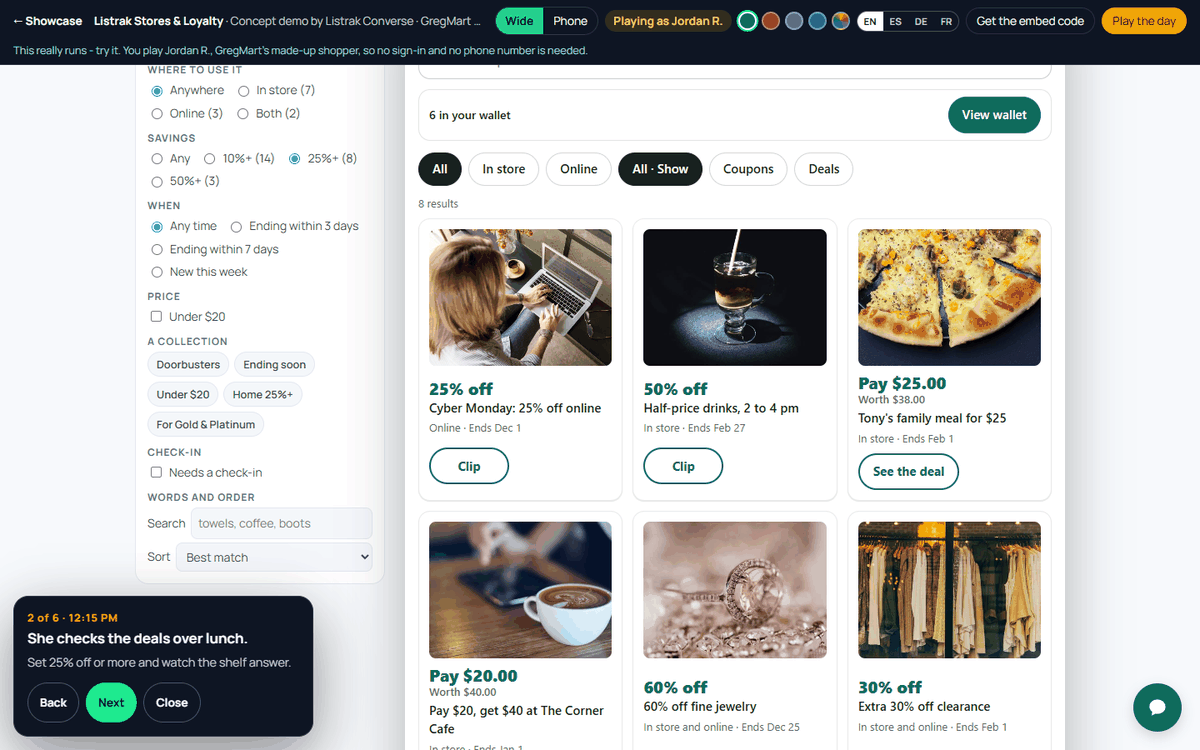
Picture 2. Play the day, on its second moment. The card in the corner leads, and the page follows.
| Time | The moment | Where it takes you |
|---|---|---|
| 7:42 AM | The weekly ad reaches her before work | The store's website, on the weekly ad |
| 12:15 PM | She checks the deals over lunch | The deal sniffer's dial, set to 25% off or more |
| 5:30 PM | She heads home with the coupon in her wallet | The wallet beside the box |
| 6:10 PM | She pulls into the lot | The box, on STORES |
| 6:25 PM | She pays at the till | The demo till |
| 6:26 PM | Her points land, and every step she took is recorded | What we measure |
Chapter 1: the showcase, stop by stop
The page reads from top to bottom like a shopper's day. Each stop below matches a section of the page, in the order you meet them; stop 9 is the one exception - it shows what Open puts in front of a member, page by page.
1. The bar across the top
What to tap. Nothing yet - read the bar. Wide and Phone switch between the whole page at a computer's width and the page as a phone shows it. The coloured dots wear a brand: pick one, or your own colour, and the website add-ins take it. EN, ES, DE and FR change the add-ins' language. Get the embed code gives you the tags for the RCS box, the AI Concierge and the coupons, wallet and points add-ins, and Play the day starts the guided tour.
What it proves. The same program can wear any brand and speak the shopper's language, and every piece on the page is a tag a store could paste.
2. The box and its command deck, with the wallet beside it
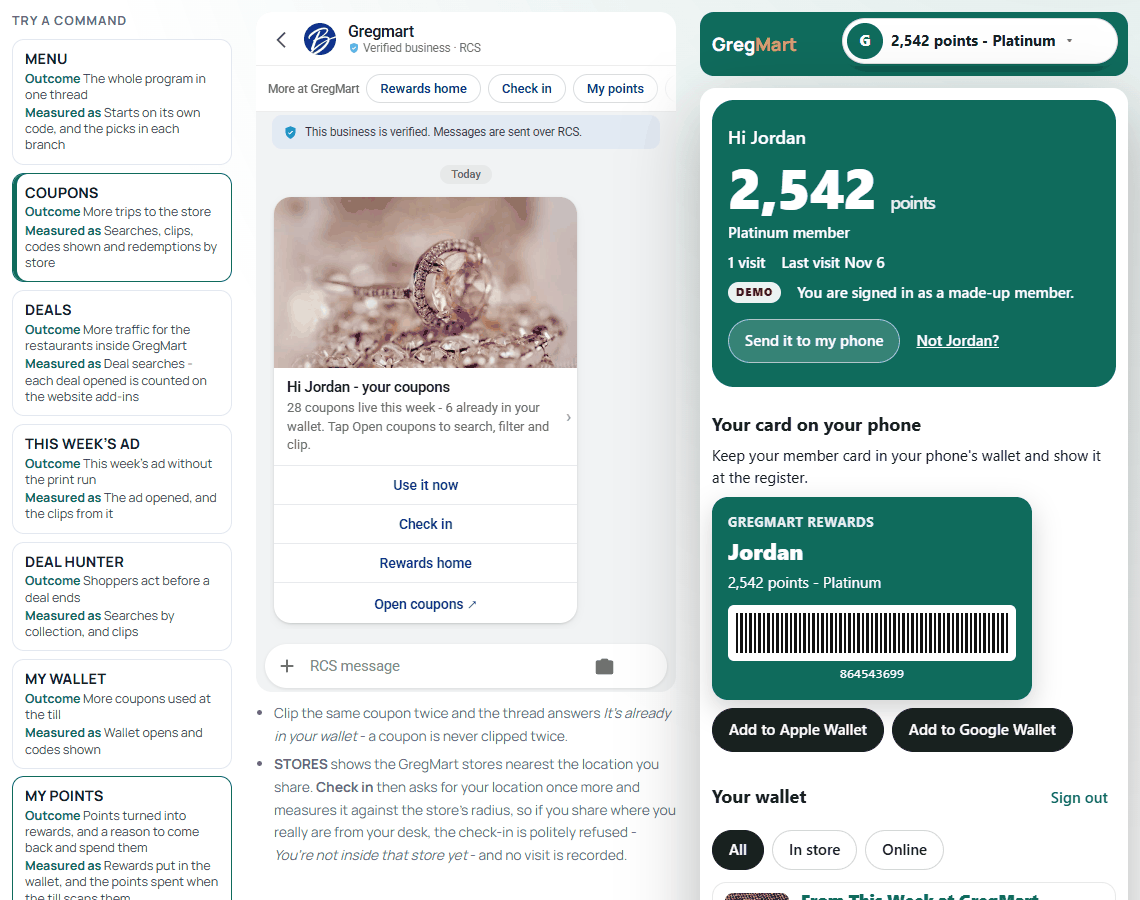
Picture 3. The command deck, the RCS box on COUPONS, and the same shopper's wallet beside it.
What to tap. On a wide screen the box and the wallet open by themselves; on a phone, select Open the box and Open the wallet. Then tap the commands on the left: MENU, COUPONS, DEALS, THIS WEEK'S AD, DEAL HUNTER, MY WALLET, MY POINTS and STORES & CHECK IN. Each card in the deck says the outcome the command is for and how Converse measures it.
What happens. Each command starts its own short conversation in the box, on its own launch code. MENU opens GregMart Rewards, the hub, which greets a member by name with their points, visits and what their wallet holds. COUPONS, DEALS, THIS WEEK'S AD and MY WALLET each answer with one rich card from the live program - a picture, a line such as how many coupons are live this week and how many the shopper already holds - and quick replies such as Use it now and Check in that hand the shopper on to the next conversation in the same thread. The bubbles across the top of the box, under More at GregMart, start another GregMart conversation fresh on its own launch code, so Launch Control counts that tap too. On a wide screen, a card's Open button (such as Open coupons) shows that page in the wallet's place beside the box, signed in as Jordan, with Back to the wallet to return; stop 8 shows Open sliding the page up inside the box instead.
Beside the box is the wallet add-in, signed in as Jordan: the points, the tier, the visits, the member card and every code ready to scan. A coupon clipped in the box lands in this wallet. Under the wallet, Watch it arrive restarts the box on MY WALLET, which is what a real member sees when they select Send it to my phone on the website - the wallet arriving in their own thread.
Try this. In DEAL HUNTER, pick a collection and clip the same coupon twice: the thread answers It's already in your wallet. Tap STORES & CHECK IN and share your location: from your desk the check-in is politely refused - You're not inside that store yet - because a check-in is measured against the store's radius, and no visit is recorded.
What it proves. One wallet follows the shopper from the conversation to the website, a coupon is never clipped twice, and a visit counts only with proof the shopper is at the store.
3. On your customer's phone
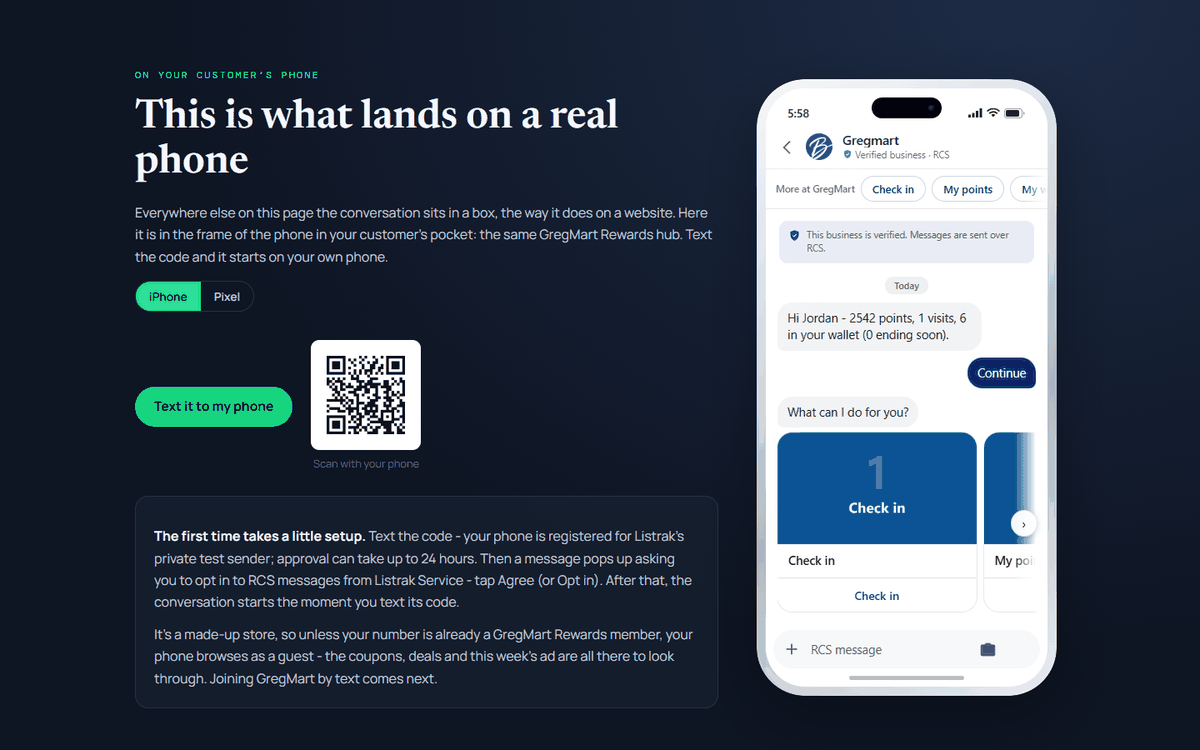
Picture 4. The same hub, drawn the way a real handset shows it.
What to tap. Select Show it on a phone, and choose iPhone or Pixel. To start it on your own phone, select Text it to my phone or scan the QR code.
What happens. Everywhere else on the page the conversation sits in a box, the way it does on a website. Here it sits in a phone's frame, so a room can see what lands in a customer's pocket. Text it opens your phone's messages with the code ready to send to Listrak's Switchboard. Unless your number is already a GregMart Rewards member, your phone browses as a guest - the coupons, deals and this week's ad are all there to look through.
What it proves. This is not a web mock-up of a chat: it is a real RCS conversation that runs on a real phone.
4. On a store's own website
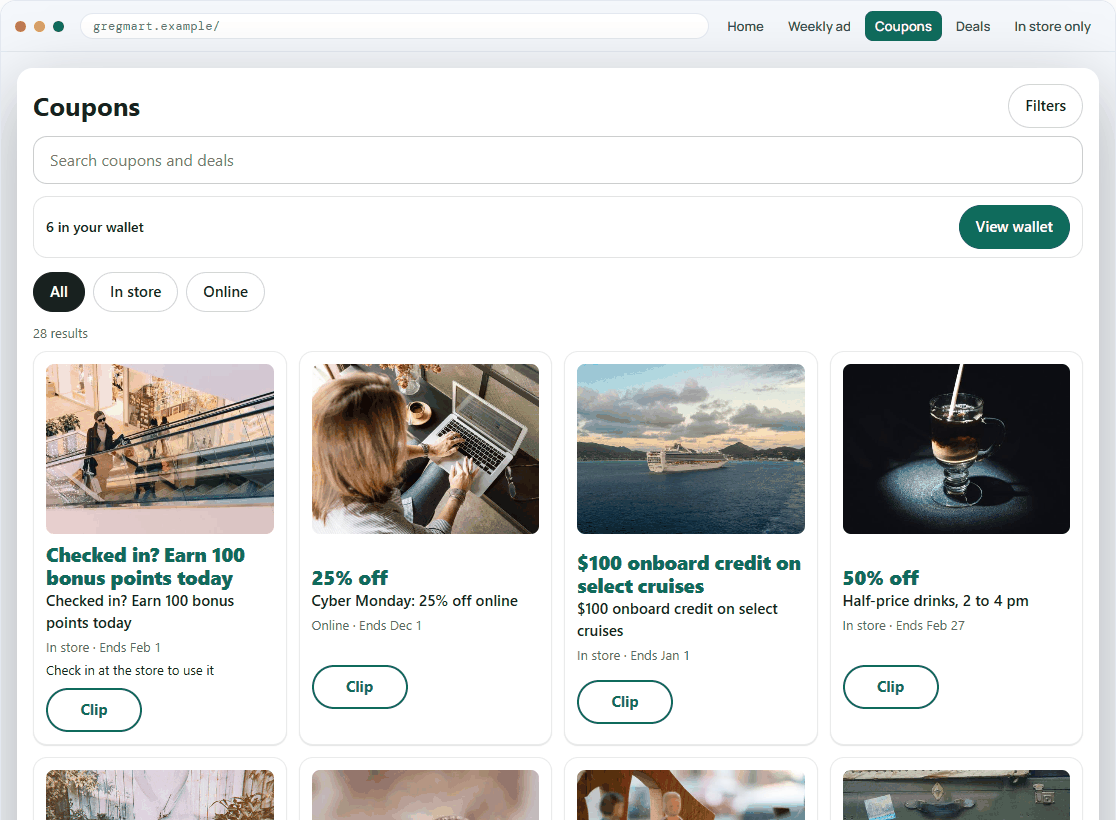
Picture 5. GregMart's website on the Coupons tab, wearing the coupons add-in.
What to tap. On a phone, select Open the store; on a wide screen it opens as you scroll to it. Then select each tab: Home, Weekly ad, Coupons, Deals and In store only. Under the window, The tag for this tab shows the one line a store pastes to put that add-in on its own page, and Copy copies it.
What happens. Each tab is the real add-in, reading GregMart's live program. The add-ins take the store's colours and font from their own tag, share one sign-in, and record every offer a shopper opens and every clip. Try EN, ES, DE or FR in the bar: the add-ins' words change, and offers keep the language they were written in. Walk the whole made-up store opens GregMart's full website, with an add-in on every page.
What it proves. A store adds coupons, deals, the weekly ad and the wallet to its existing website with one line each, and measures what shoppers look at.
5. Clip it from the weekly ad
| A page of the ad | The tap areas | The item's sheet |
|---|---|---|
 |
 |
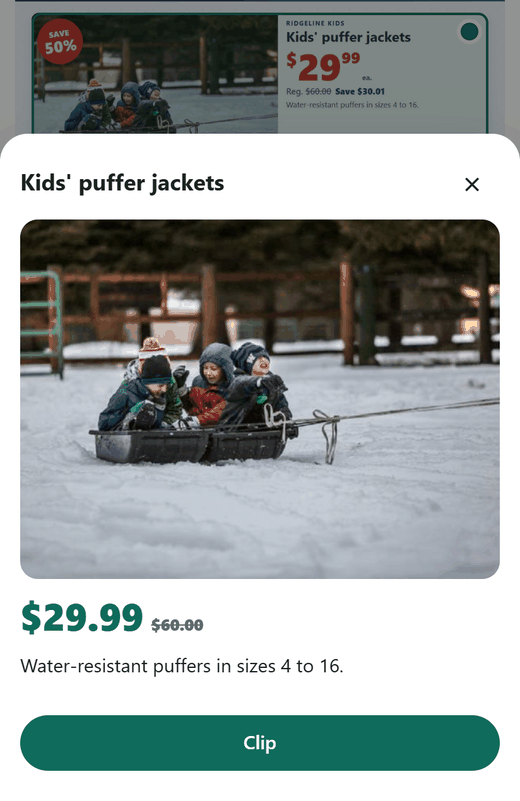 |
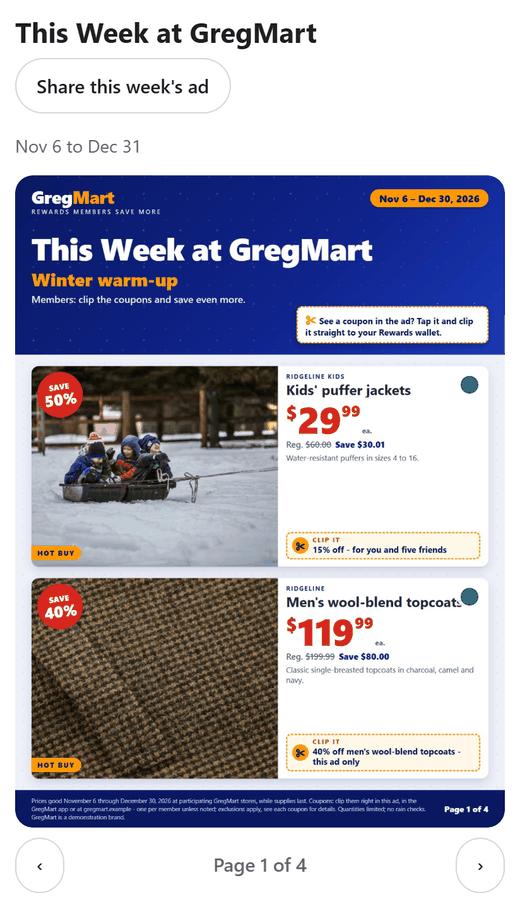
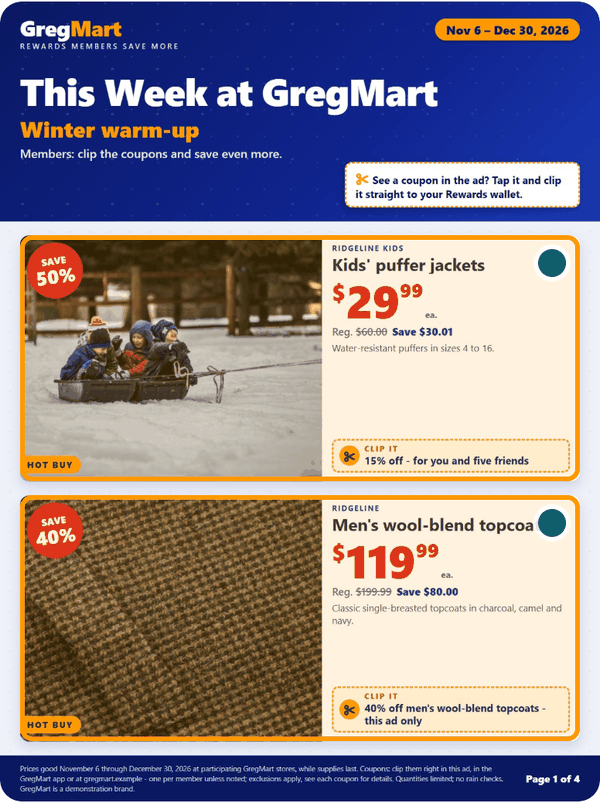
Picture 6. GregMart's weekly ad: a page as a shopper sees it, the page's tap areas (outlined here to show where they are), and the sheet that opens when an item is tapped.
What to tap. Under the store's window, in Clip it from the weekly ad, select Clip from the ad: the website opens on its Weekly ad tab. Swipe or use the arrows to turn the pages, tap an item on a page, and select Clip on its sheet. Open this week's ad opens the same add-in on a page of its own.
What happens. GregMart runs two ads - This Week at GregMart and the Holiday Gift Guide - drawn as real flyer pages, the way a store prints them. Each item on a page is a place to tap: its sheet shows the picture, the sale price against the regular price and the description, and Clip when the item carries a coupon, as the puffer jackets do. Clip puts that coupon in the member's wallet, ready for the till. Clipping needs a member who is signed in: on the page the add-ins are signed in as Jordan, so the coupon lands in the wallet beside the box. A shopper who is not signed in yet clips into a bag, and the coupon lands in their wallet the moment they sign in. Below the pages, Everything in this ad lists every item with a search, and Share this week's ad sends a link to it.
What it proves. The ad a store already makes becomes a shelf shoppers can clip from, and every page seen, item tapped and coupon clipped is counted.
6. The deal sniffer's dial
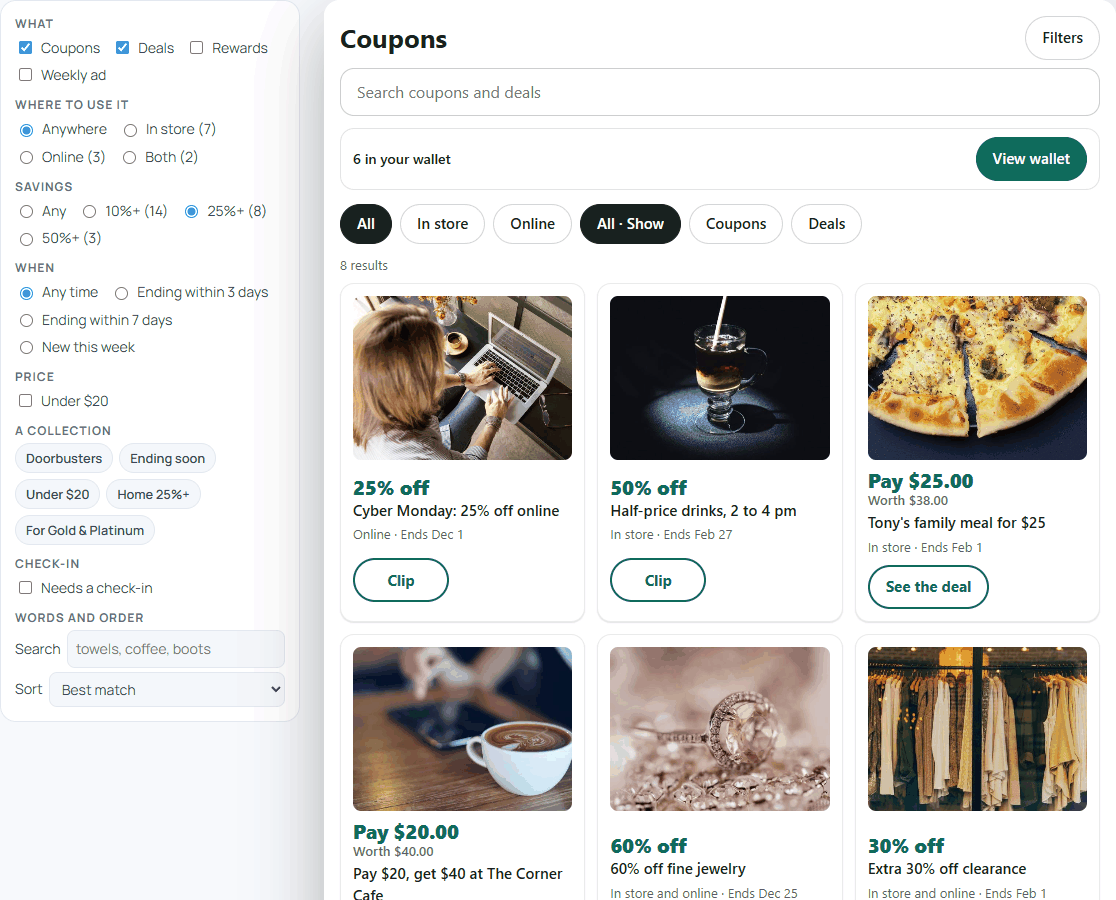
Picture 7. The dial set to 25% off or more, and the shelf answering.
What to tap. On a phone, select Show the shelf; on a wide screen the shelf opens as you scroll to it. Then turn the dial: tick Rewards or Weekly ad, choose In store or Online, a savings band, Ending within 3 days, Under $20, a collection such as Doorbusters, or type a word in Search and change Sort.
What happens. Every control writes the real browse filter - the same one the conversation, the AI Concierge, the API and the add-ins read - and the shelf answers live. The counts beside In store, Online, Both and the savings bands say how many offers each choice finds. The tag for this shelf is the one a store would paste to show exactly this shelf.
What it proves. One filter vocabulary serves every screen, so a store can feature exactly the deals it wants, wherever the shopper is. Every offer opened, every repeat look and every clip is recorded against its offer.
7. The same conversation, everywhere
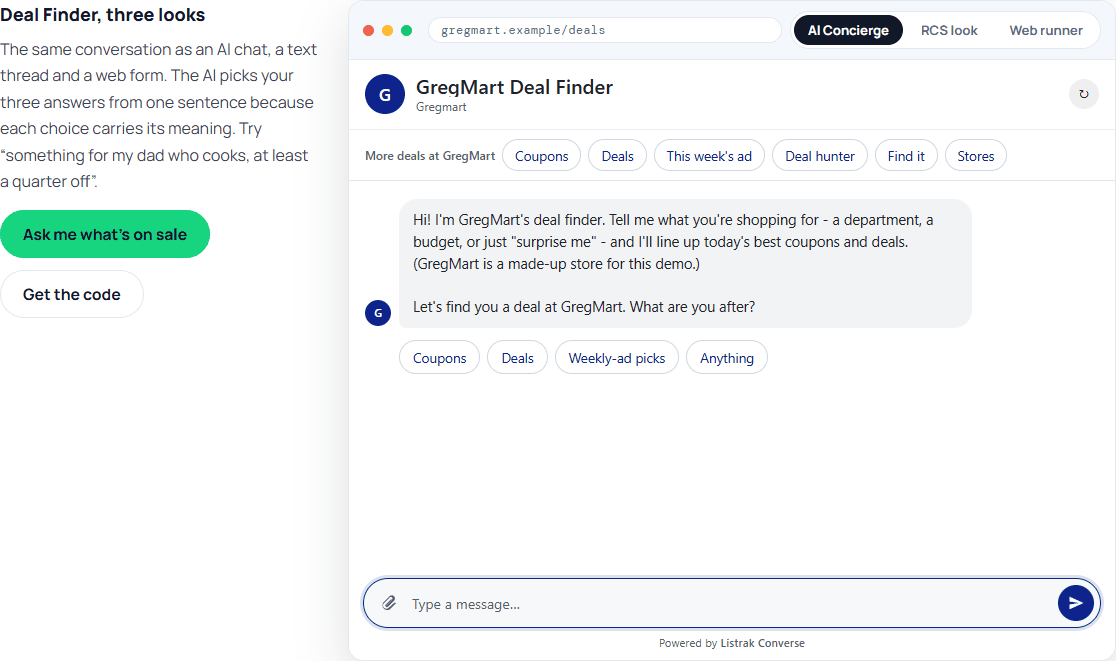
Picture 8. Deal Finder, the same conversation in three looks.
What to tap. Scroll through the table: each command, the loyalty verb behind it, what the shopper sees, the outcome and how it is measured, with Try it to start it in the box at the top of the page. Then, under Deal Finder, three looks, select Start it here (on a wide screen it starts as you scroll to it) and switch between AI Concierge, RCS look and Web runner. In the AI Concierge, type a sentence such as something for my dad who cooks, at least a quarter off.
What happens. Deal Finder asks three questions - what, which department and how much off - and then shows the deals that fit. The AI Concierge picks all three answers from one sentence because each choice carries its meaning. Ask me what's on sale opens the same AI Concierge in the page's corner. Beside it, Sell a deal in the thread explains what is live today: a conversation can take payment with the Payment moment, and when a store sells a deal on its own site, its system can put the voucher in the shopper's wallet.
What it proves. One conversation, built once, runs as a text thread, an AI chat and a web form, and the AI only reads the shelf - it never moves value.
8. One card, and Open
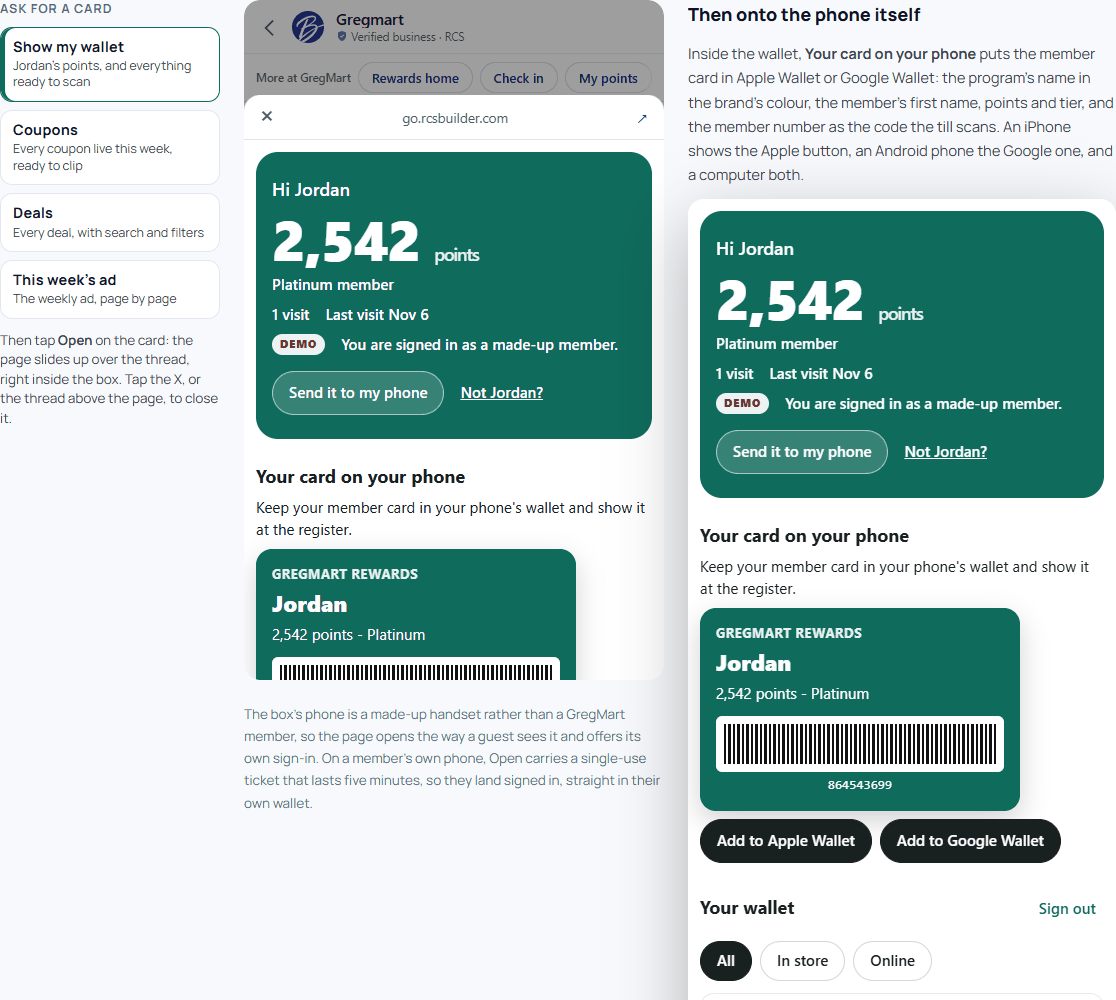
Picture 9. Open on the card slides the wallet up over the conversation, inside the box.
What to tap. Select Show my wallet, Coupons, Deals or This week's ad. When the card arrives in the box, tap its Open button, such as Open wallet. Tap the X, or the thread above the page, to close it. On the right, the wallet with the member card opens as you scroll to it on a wide screen; on a phone, select Show the card.
What happens. The thread answers with one rich card from the live program. Open slides the full page up over the conversation, the way RCS opens a web page on an Android phone, with search, filters, Clip, the details and Use it now; close it and the shopper is right back in the thread. On a member's own phone, Open carries a single-use ticket that lasts five minutes, so they land signed in, straight in their own wallet. On the right, Your card on your phone shows the member card a shopper adds to Apple Wallet or Google Wallet: the program's name in the brand's colour, the member's first name, points and tier, and the member number as the code the till scans.
What it proves. The whole loyalty page opens inside the conversation in one tap, and the member card goes into the phone's own wallet. GregMart signs its cards with test credentials for now: Converse builds and signs every card end to end, and a phone adds it once a store's real Apple and Google credentials are in.
9. The web overlay, page by page
| Coupons, on a phone | Rewards, on a phone |
|---|---|
 |
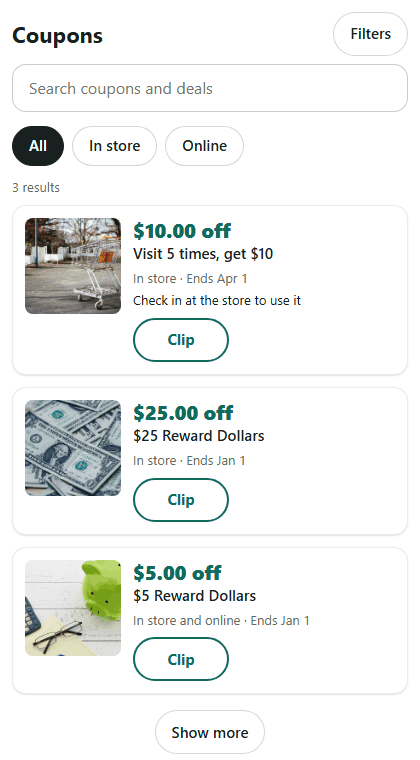 |
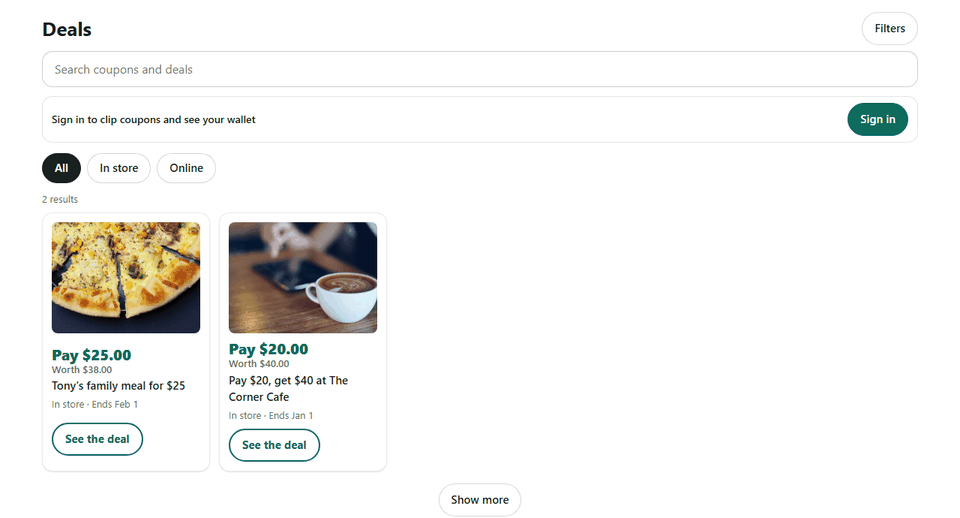
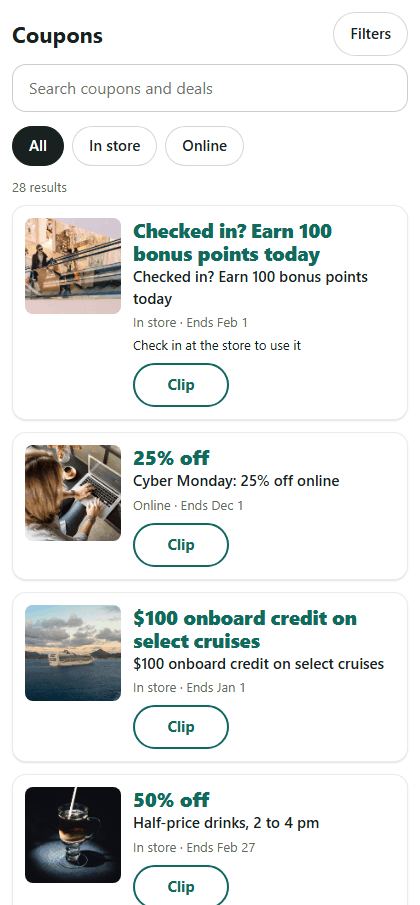
Picture 10. The pages Open shows over the thread - coupons and rewards on a phone, and deals on a wide screen - as a guest sees them.
What it is. This is what a member sees when they tap Open on a card in their thread - Open coupons, Open deals, Open wallet or this week's ad - and what a shopper sees in the add-ins on a store's own website. They are the same pages: the coupons, the deals, the rewards their points or visits can earn, the weekly ad and the wallet, each card with its picture, what it saves, where and until when it can be used, and Clip - or See the deal for a deal, which is bought rather than clipped. Search, In store and Online, and Filters narrow the shelf the way the dial in stop 6 does.
How the member is signed in. From their own thread, Open carries a single-use ticket that lasts five minutes, so the member lands signed in, straight in their own wallet, with no code to type. On a store's website a shopper signs in once with a code sent to their phone or email - or the store's own site signs in a member it already knows with a one-time ticket from its server - and every add-in on the page shares that sign-in. The pictures above show a guest's view: on the wide deals page Sign in waits at the top, and on a phone it sits at the foot of the screen. A guest can browse everything, and a clip waits in a bag until they sign in.
What it proves. The thread stays short - one card - while the shopper gets the whole shelf, with pictures, in one tap, and the same pages carry the program onto the store's own website.
10. At the till
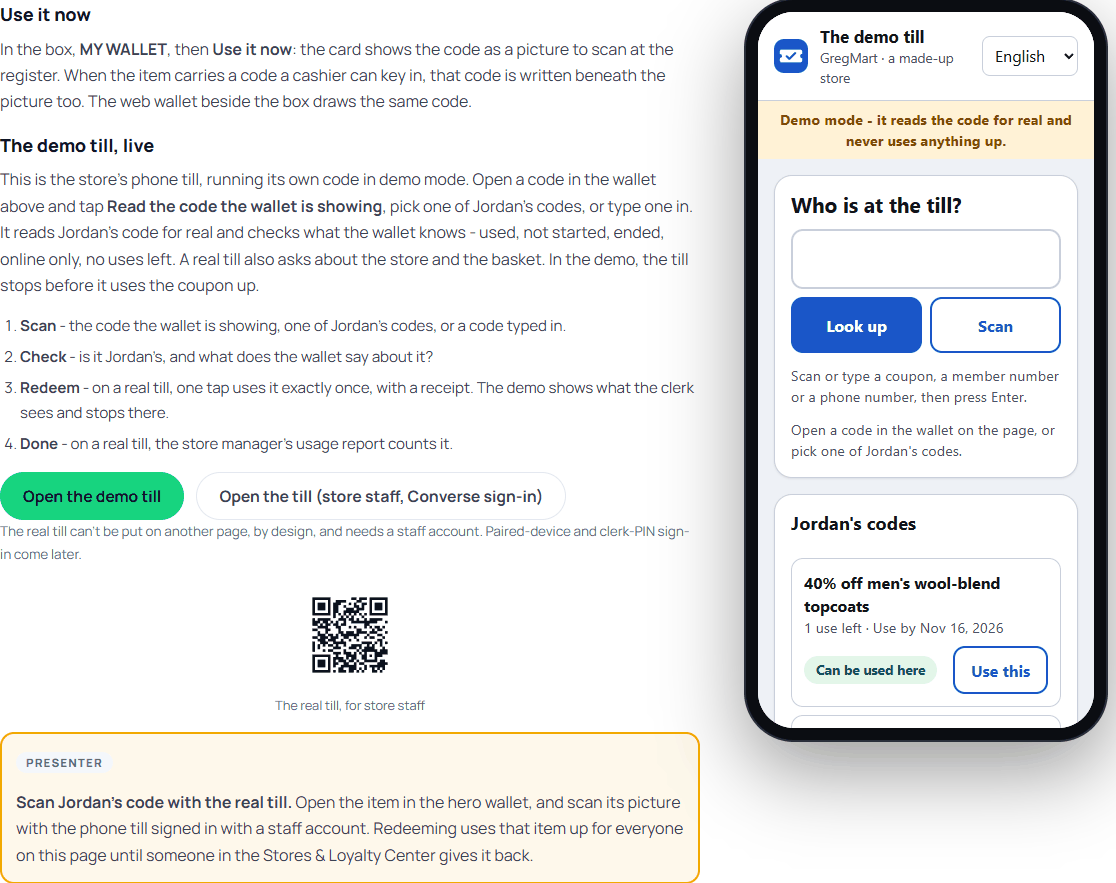
Picture 11. The demo till, live on the page in a phone's frame.
What to tap. Select Open the demo till. In the wallet beside the box, open a code, then in the till tap Read the code the wallet is showing; or pick one of Jordan's codes and select Use this; or type a code and select Look up.
What happens. This is the store's phone till, running its own code in demo mode. It reads Jordan's code for real and checks what the wallet knows - used, not started, ended, online only or no uses left. A real till also asks about the store and the basket. In the demo, Redeem stays off, so nothing is ever used up. Under the till, The redemption app shows the real till's screens, signed in at a GregMart store, from the shopper's look-up to the receipt and an undo, and Read the demo walk-through opens this guide. The cards below say what the real till adds: a coupon used exactly once, an undo that carries its reason, and a usage report for the store manager. The next part of this guide, The redemption app, walks the real till screen by screen.
Presenter mode. Open the page with ?presenter=1 at the end of its address, and a Presenter note appears in this
section for a presenter who has a staff account on the real till. Redeeming Jordan's code at a real till uses that item up for
everyone on the page until someone in the Stores & Loyalty Center gives it back, so this walk-through never asks you to: the
demo till and the real till's pictures show everything a room needs to see.
What it proves. The store checks every coupon for real at the counter, on any phone, with nothing to install.
11. Points and visits
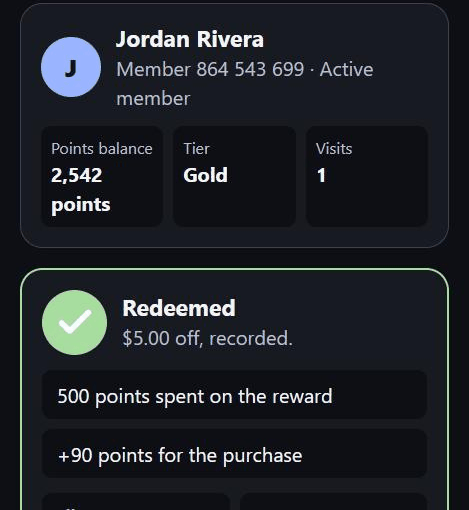
Picture 12. The real till at a GregMart store: the member's points, tier and visits, and what one redemption wrote - 500 points spent on the reward and 90 earned on a $60 basket.
What to read. The section shows how a member's points and visits look on every screen, how they add up, and how a store's own systems add points over the API. Ask MY POINTS in the box and Check in from the box start those conversations in the box at the top of the page.
What happens. On the phone, MY POINTS answers with the balance, the tier and the rewards the points can buy, and after a check-in the next moment shows a picture Converse draws of the new balance, the points that just landed and how far it is to the next tier, in the brand's colour. On a store's website, the points badge sits in the header with the member's points and tier - or Sign in for your points - and opens a panel with the balance, the tier and a bar to the next one, the visits, the rewards the points can buy and what is ready to use; the home and wallet add-ins open with the same summary. A reward can be earned with visits as well as points: GregMart's Visit 5 times, get $10 is one.
Every point is an entry on one ledger with its reason - joining, a purchase, a check-in, a birthday, a referral, a bonus, a reward spent, an expiry, a correction or a reversal - so the balance is always the sum of what really happened, and an entry is never edited. A purchase earns by the program's own rules from the basket total, times the tier's multiplier and the best promotion running, rounded down; no basket total, no purchase points. A check-in counts once a day per store, and only with the proof the program asks for. Tiers follow lifetime points or visits. An undo at the till gives back exactly what the redemption wrote.
A store's point of sale, its online shop or a data feed adds points with one call. It uses a POS key - an API key that holds a loyalty role and nothing else - and an AI agent never moves value:
POST https://api.rcsbuilder.com/api/v1/loyalty/points/append
Authorization: Bearer <your POS key>

{ "memberId": 41, "reason": "purchase", "basketTotalMinor": 6000, "currency": "USD",
  "storeId": 2, "idempotencyKey": "pos-0102-receipt-1042" }
A purchase is priced by the program's rules, so the call sends the basket rather than the points; a bonus or a correction sends its own points, and a correction says why. The idempotency key makes a retry safe: the same key answers the entry it already wrote.
What it proves. Points and visits mean the same thing in the thread, on the website and at the till, and a store's other systems feed the same ledger.
12. What we measure
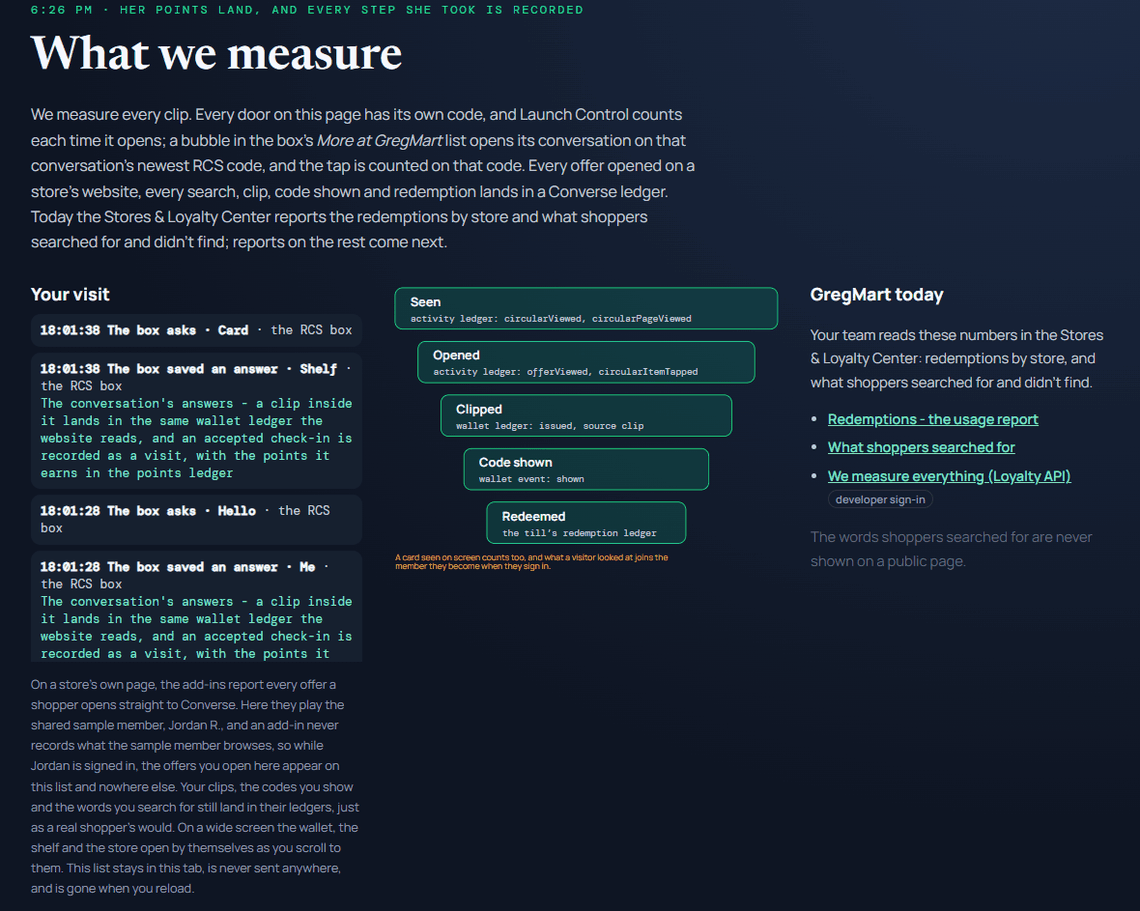
Picture 13. Your visit, the funnel and its ledgers, and where a store reads its numbers.
What to tap. Nothing - by now Your visit lists what you did on the page: the box asking, the answers it saved, the codes the wallet showed.
What happens. Every door on the page has its own code, and Launch Control counts each time it opens. Every offer opened on a store's website, every search, clip, code shown and redemption lands in a Converse ledger, and the funnel shows which ledger each one lands in. Your visit stays in your browser tab, is never sent anywhere, and is gone when you reload. Because everyone plays the shared sample member, the add-ins never record what Jordan browses, so the offers you open here appear on this list and nowhere else; your clips, the codes you show and the words you search for still land in their ledgers, just as a real shopper's would.
What it proves. The store sees the whole path from a look to a redemption. Today the Stores & Loyalty Center reports the redemptions by store and what shoppers searched for and didn't find; reports on the rest come next.
13. Your homepage, with deals
What to tap. Type a website address in Your website address and select Show me.
What happens. The page reads the site's name, headline and colours, draws a mock of that homepage, and puts this week's ad and the coupons on it in the site's colour. Copy the tags gives the lines that would do it for real.
What it proves. A prospect sees the program wearing their own brand in seconds. Use a prospect's address when you are demoing to that prospect.
13a. A gift certificate, bought and spent
GregMart sells two gift certificates: the GregMart Gift Certificate - $25, $50 or $100, or any whole-dollar amount from $10 to $500 - and a bonus offer, Buy a $100 gift certificate, get 500 bonus points. Neither ever expires. GregMart Rewards lets points pay toward them at 100 points to $1, up to the whole price, and the card pays whatever the points do not cover.
Before the meeting - make your phone a member. Only a member can buy a certificate or a deal. A phone that is not a member yet chooses who it is for and an amount, then is told how to join, and nothing is bought. To join GregMart Rewards, text the code B94YGP9 to Listrak's Switchboard (+1 814 996 1164), tap Join free and give your first name. Maison Vale has no way to join by text, so add your number in the Portal instead: sign in to Maison Vale's workspace, open Members and select Add a member.
What to tap - on the website. Open the full GregMart website (Walk the whole made-up store, or go.rcsbuilder.com/discover/gregmart/gifts/) on Gift certificates. Select Choose an amount on a certificate, then tap an amount such as $50. The sheet shows Text to buy, Buy on WhatsApp and Buy in Messages, each opening the chat with that amount already chosen. Under them, for a computer, it says the short code and the number to text from a phone (M188HCP to (814) 996-1164); that way carries no amount, so the shopper chooses the certificate and its amount in the chat. The bonus offer sells one amount, so its card says $100 and its Buy it opens with that amount picked. Another amount opens the chat too, where GregMart's conversation asks for the amount straight away - type one. Check a balance at the bottom takes any certificate's code.
What to tap - on the phone. Text the code M188HCP to the Switchboard to start the Buy a gift certificate conversation. A phone already talking to GregMart can text GIFTS in its GregMart conversation, or GMGIFT to the Switchboard, instead. Swipe the certificates and tap Choose, then answer Who is it for? with For me or A gift for someone (a gift asks who it is to, who it is from and a short message). Pick an amount from the carousel, or Another amount and type one. A member with points to spend then sees Use your points toward it? with a card for each choice - the most their points can take off, the fewest, and Keep my points - each saying what is left to pay. Tap one and the conversation opens the payment page for exactly that amount. A member with too few points to use is asked to buy it at the full price instead.
What happens. A Buy on the website opens the same conversation with the certificate and the amount already chosen, so the shopper only says who it is for and how many points to use. The payment runs in Stripe test mode - pay with the test card 4242 4242 4242 4242, any future date and any CVC - and a member whose points cover the whole price skips the payment altogether. The certificate lands in the wallet with its balance and only the last four characters of its code, and the conversation's last card carries Print it: the certificate opens on its own page with the whole code, a barcode and a QR code. Type that code into Check a balance on GregMart's Gift certificates page to see what is left on it - the answer never says who holds it. To spend part of it, use a real till: a phone paired to a GregMart store, or the Portal's Redeem at the register page signed in to GregMart's workspace. Scan or type the code, type the amount to take, and the receipt says what is left. The demo till on the Stores & Loyalty page is not the place for this beat: it reads only its own made-up shopper's wallet and does not weigh a certificate's balance.
Maison Vale too. Maison Vale sells The Vale Circle Gift Certificate - $50, $100 or $250, or any amount from $10 to $500 - and the same $100-with-500-bonus-points offer. From a phone that is a member of The Vale Circle, text the code B859FAM to the Switchboard for a certificate, or F140KP4 to buy one of its deals the same way; a phone already talking to Maison Vale can text GIFTS or VALEGIFT, and DEALS or VALEDEAL, instead.
What it proves. A store sells gift certificates from a message or its own website, points pay part or all of one, the shopper prints it or passes it on, and the till spends it a little at a time like cash - while the Portal's Gift certificates page shows the brand what it still owes.
14. Two ways to run it, and everything to build it
What to read. Be the program, or bring yours shows the two ways a retailer runs Stores & Loyalty: build the whole program in the Stores & Loyalty Center, or keep its own system - its stores, category codes, offers and circular items come in by file, REST or MCP, and its members by REST or MCP - while its POS keeps redeeming. Everything you need to build it lists every guide, and Every guide, with its PDF and Download every PDF (zip) hand a prospect the whole kit with no sign-in.
What it proves. Converse fits the retailer's systems instead of replacing them.
15. Coming next, and on the way
The last two sections say plainly what is not live yet: an in-store AI shopping assistant trained on a store's own catalog and planograms, coupons as phone wallet passes and a member card that updates itself, a deal paid for in the thread landing in the wallet, the AI Concierge looking deals up by itself, joining from a website add-in, a different button for each card on a mixed shelf in the thread, and a wallet of your own per visit with GregMart's live numbers on the page. Present them as the roadmap, never as part of the demo.
The redemption app
The redemption app is the till on a phone, and it is the tool a store's staff use at the counter every day. It is a plain web page at go.rcsbuilder.com/redeem - nothing to install, and it opens in a moment even on a weak signal. A store opens it on the phone it keeps at the register, adds it to the home screen, and from then on it opens from its own icon, like an app. The pictures below were taken on the real till, signed in at a GregMart store with a staff account; the redemption they show was made on Jordan, GregMart's made-up member, and undone a minute later.
At the counter, screen by screen
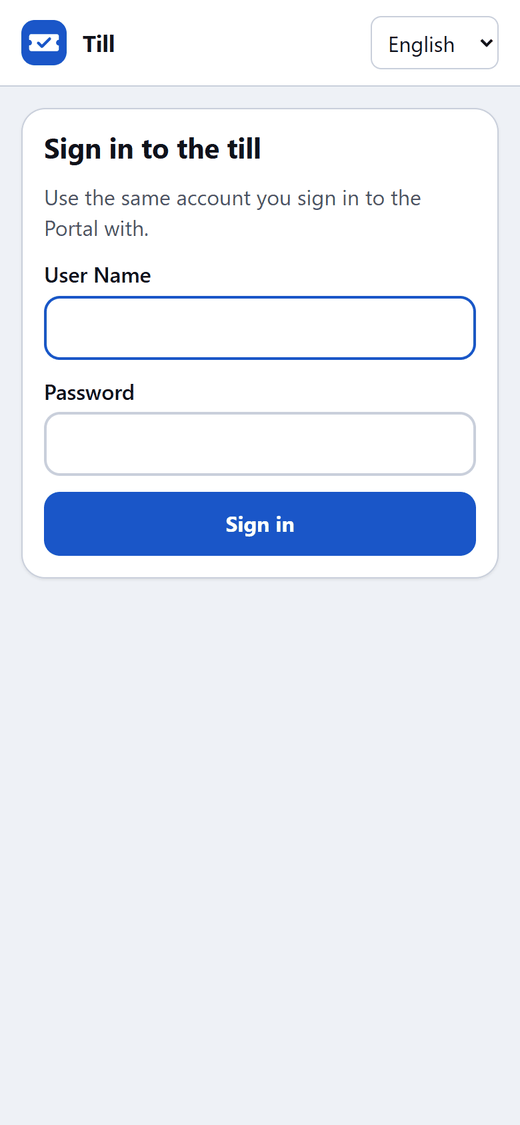
Picture 14. The till opens on its sign-in. It uses the same account a person signs in to the Portal with.
- Open the till. On the store's phone, go to go.rcsbuilder.com/redeem, or scan the QR code on the Portal's Redeem at the register page. To keep it on the phone, use the browser's Add to Home Screen.
- Sign in. Enter your User Name and Password - the account you use for the Portal - then the one-time code sent to your phone or email, and choose the workspace if you belong to more than one. The till stays signed in while the page is open and forgets you when the page closes or you select Sign out; your password is never kept on the phone. You need the Store redeemer or Loyalty manager role, and - when you work for some merchants only - the redeemer role at your store's merchant. Without them the till says so calmly - The till is closed to you or You don't redeem at any merchant - and who to ask.
| Pick the store | Who is at the till? | The member, and the coupon |
|---|---|---|
 |
 |
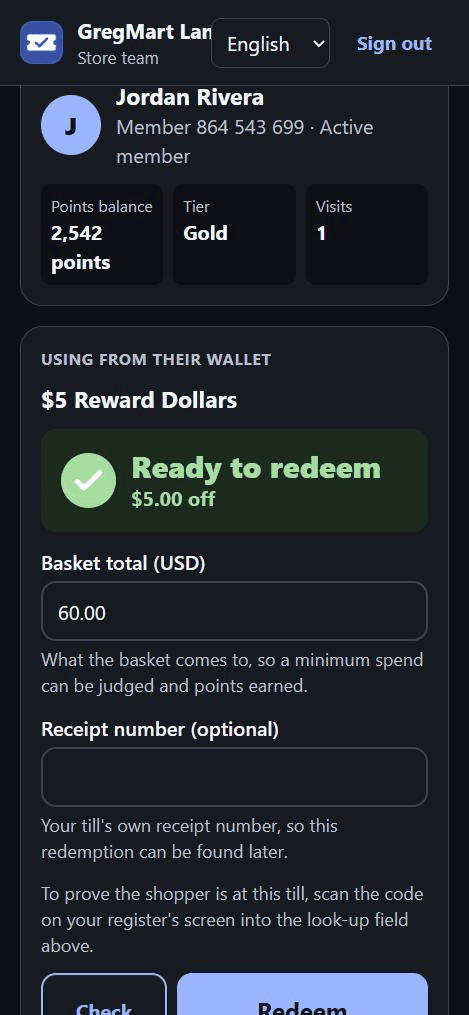 |
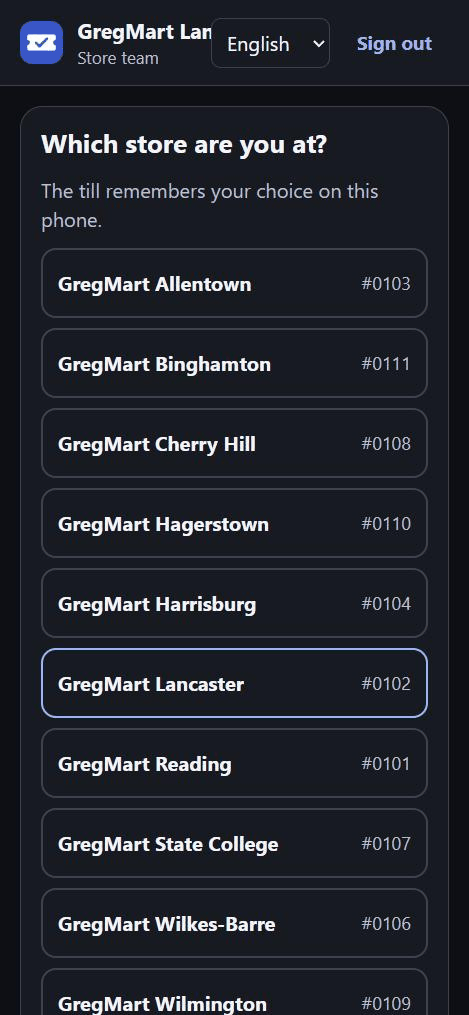
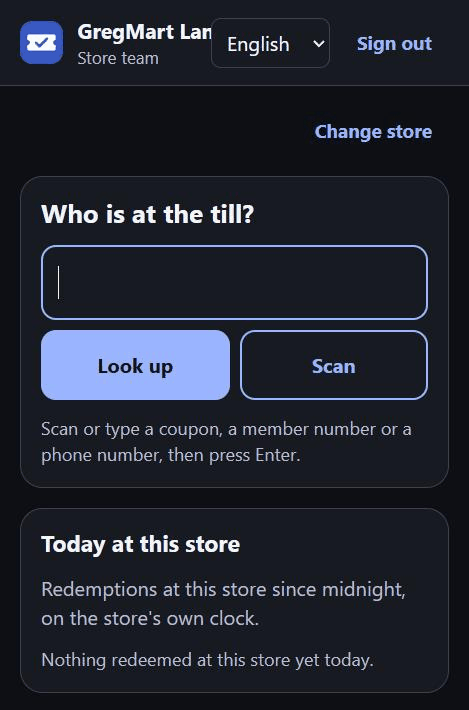
Picture 15. Pick the store once, scan or type what the shopper shows, and the till finds the member and what they hold.
- Pick the store. The first time, the till asks Which store are you at? and lists only the stores you may redeem at. It remembers the answer on that phone; Change store switches it.
- Scan or type. Who is at the till? is one field for whatever the shopper shows: a coupon's QR code, a coupon code, the member card in their phone's wallet, a member number or a phone number. Scan opens the phone's camera and reads the code by itself - QR codes and printed barcodes - and a handheld scanner that types what it reads works as it is. Select Look up, or press Enter.
- The member and what they hold. The till shows the member's points balance, tier and visits, and everything in their wallet judged for this store right now. Select Use this beside the item the shopper wants; a scanned coupon opens at once. A Loyalty manager sees the member whole; everyone else at the register sees what it needs - the number, the first name, the tier and the balance - and the member's phone, email and birthday stay private.
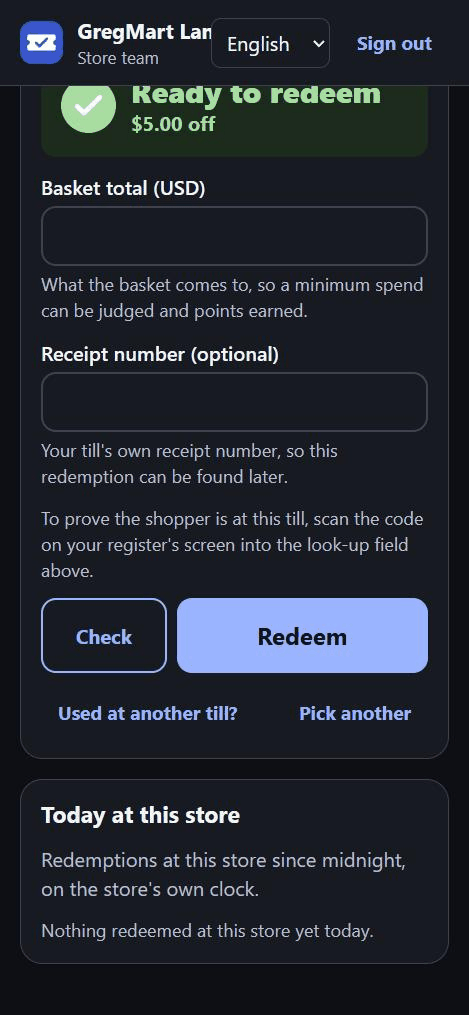
- Check against the basket. The banner says Ready to redeem, Check at the till first or Can't be used here now, with the reasons in plain words and what the coupon gives. Type the Basket total - it lets the till judge a minimum spend and earn the purchase's points (for staff who work for some merchants only, the receipt says those points come from the store's own till or the Loyalty manager instead) - and select Check, which never uses anything. When the banner says Check at the till first, check the basket, then tick I checked at the till: the basket meets the conditions above. Add the register's Receipt number to find the redemption later.
| Check, then Redeem | Redeemed, and the points | The receipt |
|---|---|---|
 |
|
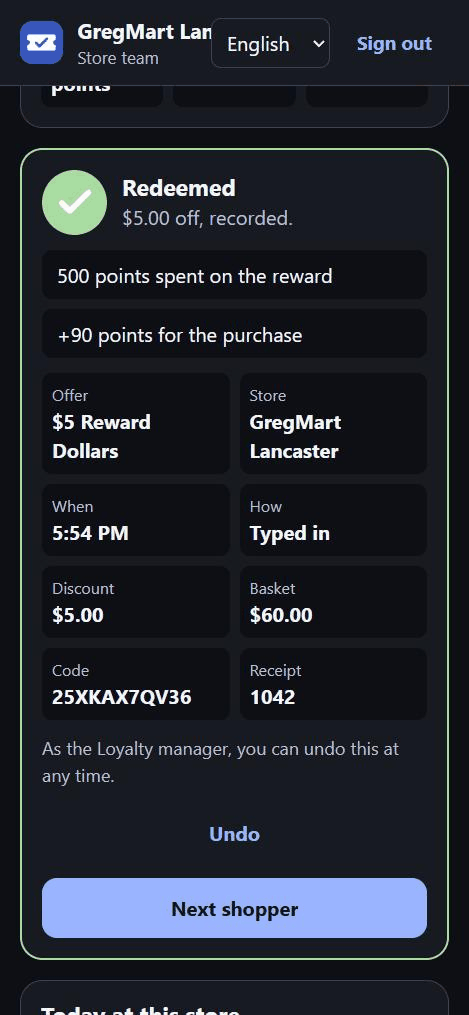 |
Picture 16. One tap redeems the coupon exactly once, and the receipt says everything the redemption recorded.
- Redeem, exactly once. Select Redeem - only the button redeems; Enter never does, so a scan can't use a coupon before you have read the answer. The phone gives a short buzz, where it can, and shows the receipt: what it gave, the points it wrote - here 500 points spent on the reward and 90 earned on the purchase - and the offer, the store, when, how it was shown, the discount, the basket, the code and the receipt number. Next shopper clears the screen for the next scan.
- If the signal drops. When the till says it couldn't tell whether a redemption went through, select Try again. It sends the same attempt, so a coupon is never used twice: if the first try landed, you see that first receipt.
| Today at this store | Undo, with a reason | Undone |
|---|---|---|
 |
 |
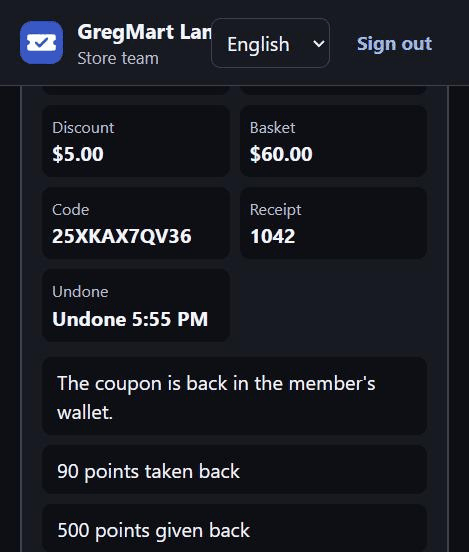 |
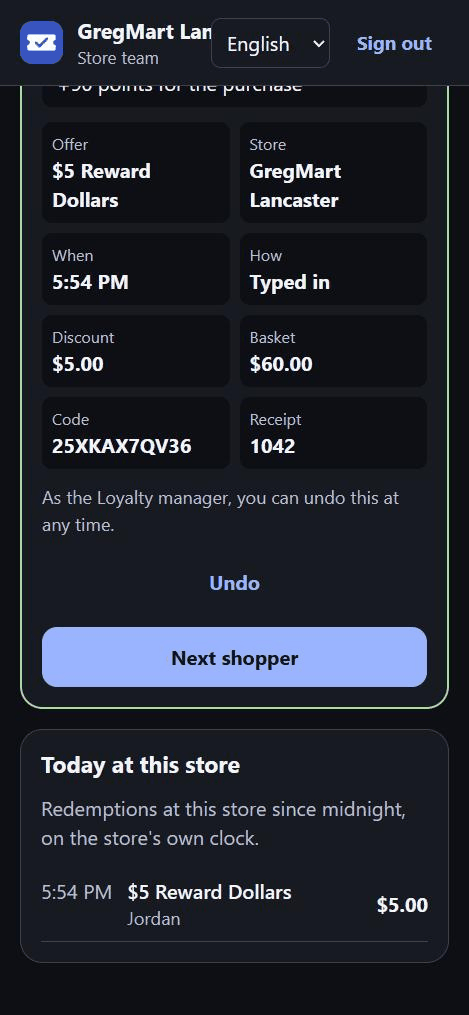
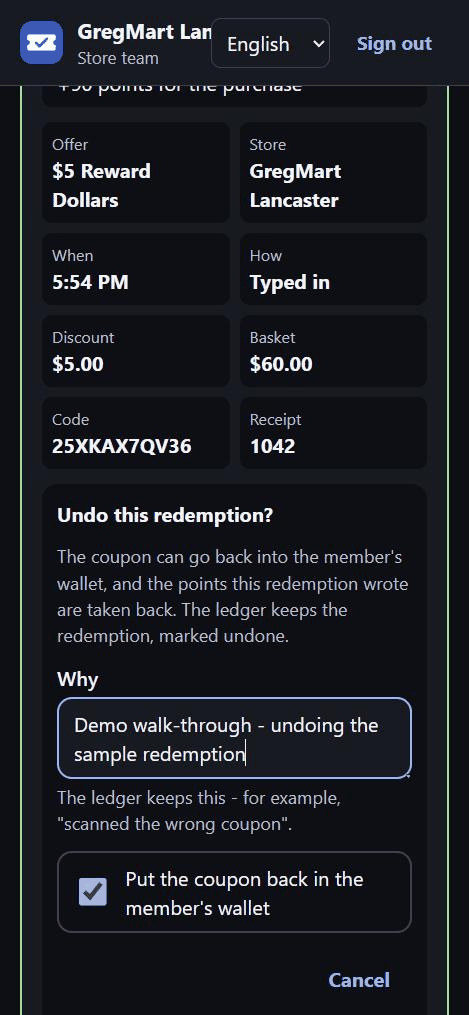
Picture 17. Today's redemptions at the store, and an undo that keeps its reason and gives everything back.
- Today at this store. Every redemption at the store since midnight, on the store's own clock, the latest at the top - the time, the offer, the shopper's first name and what it gave. An undone one is struck through and marked Undone. Every redemption also lands in Redemptions in the Portal, the store manager's usage report.
- Undo, with a reason. On the receipt, select Undo, say what went wrong in Why - the ledger keeps it - and leave Put the coupon back in the member's wallet ticked to give it back. Undo the redemption marks it undone, takes back the purchase's points and gives back the points the reward spent. A redeemer can undo for 10 minutes; the Loyalty manager can undo at any time, and a redemption you have moved on from is undone from its page in Redemptions.
A coupon your other till already took can be recorded with Used at another till?, so it can't be used again. The till speaks English, Spanish, German and French, and follows the phone's light or dark mode. The full guide for store teams is the merchant redemption guide, and The till on your phone is the clerk's page.
Try it yourself on the showcase
The showcase's demo till is the same till in a demo mode anyone can try, with no account: it opens Jordan's wallet, reads a code for real and judges it, and its Redeem stays off.
| Look up | The member | Check | A refusal |
|---|---|---|---|
 |
 |
 |
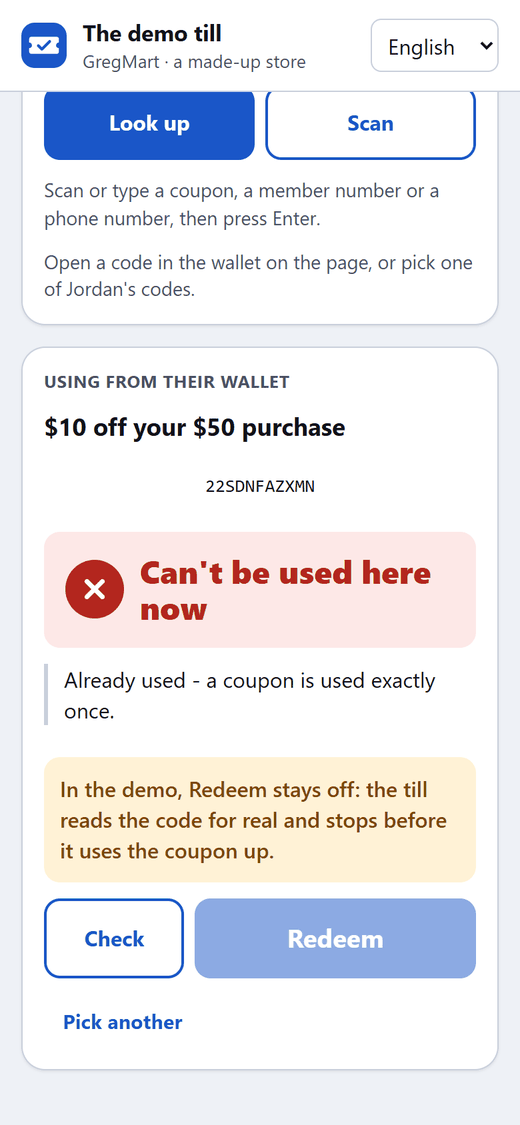 |
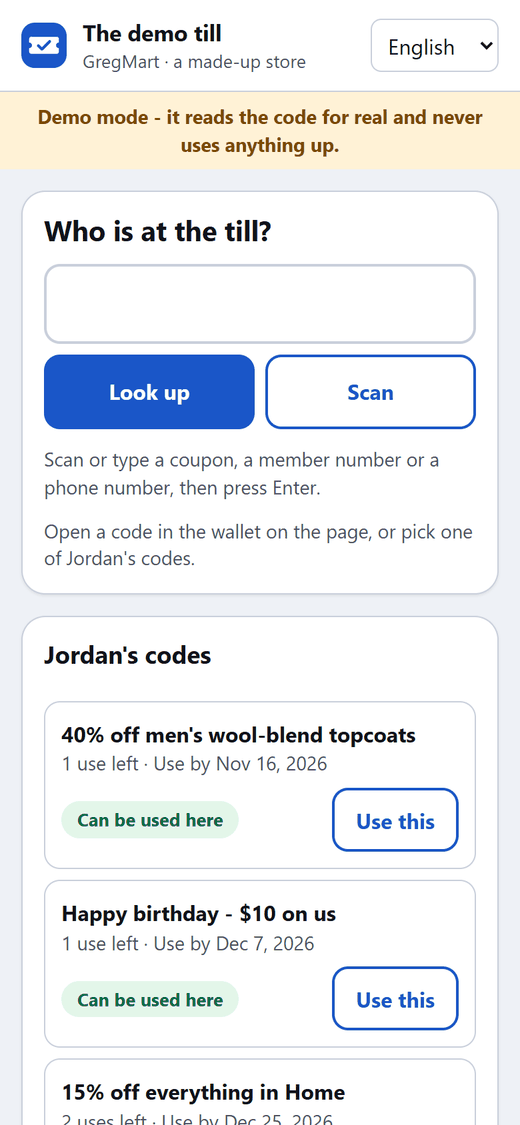
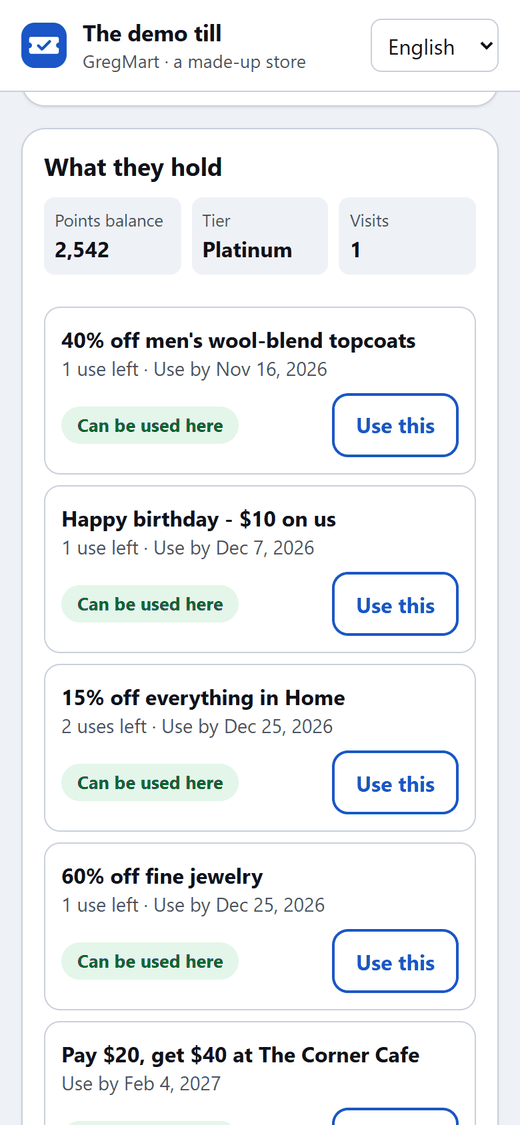
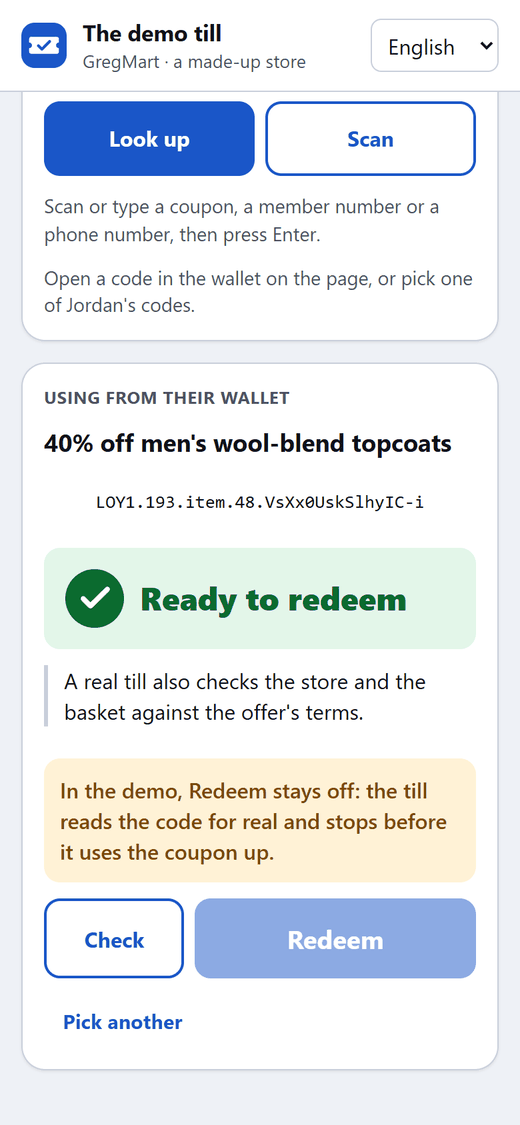
Picture 18. The demo till: look up, the member's wallet with each item judged, a coupon ready to redeem, and one that has already been used.
- Look up. The demo opens on Who is at the till?, lists Jordan's codes, and can read the code the page's wallet is showing. Look Jordan up by Jordan's demo number, 610-555-0101, or pick a code and select Use this.
- The member. What they hold shows the points balance, the tier and the visits, then every item in the wallet judged right now - Can be used here or Can't be used here now. The demo judges each item from its own facts; a real till also judges it for its store and the basket.
- Check. The till shows the coupon's name and code and a large banner - Ready to redeem when it can be used. Check reads the item again, and Redeem is drawn where the clerk would tap it and stays off.
- A refusal. A coupon that cannot be used says why in plain words - here, Already used - a coupon is used exactly once. The demo also says when a coupon has not started, has ended, works online only or has no uses left.
Select Pick another to try the next code.
At a counter computer
The Stores & Loyalty Center's Redeem at the register page is the same desk on a computer, for a store that keeps one at the counter with a scanner that types what it reads: the same field, the same checks, the same exactly-once rule, undo and Today at this store. It is less common than the phone, and it offers the phone till too - Open the till on your phone, with its QR code. The merchant redemption guide covers it in its last section.
Chapter 2: the Stores & Loyalty Center in the Portal
The Stores & Loyalty Center is where a brand's team sets the program up and runs it. It appears in the Portal's menu under Launch once the Loyalty skill is switched on in the workspace, and its pages sit in four groups on the left: Your program, What you offer, Shoppers and Your systems. The stops below follow the order a team works in - set up the program, its merchants and stores, file and write what it offers, then look after members and read the numbers. The pictures were taken on GregMart's live Center; each page has its own guide, which opens from the ? on the page.
1. Overview
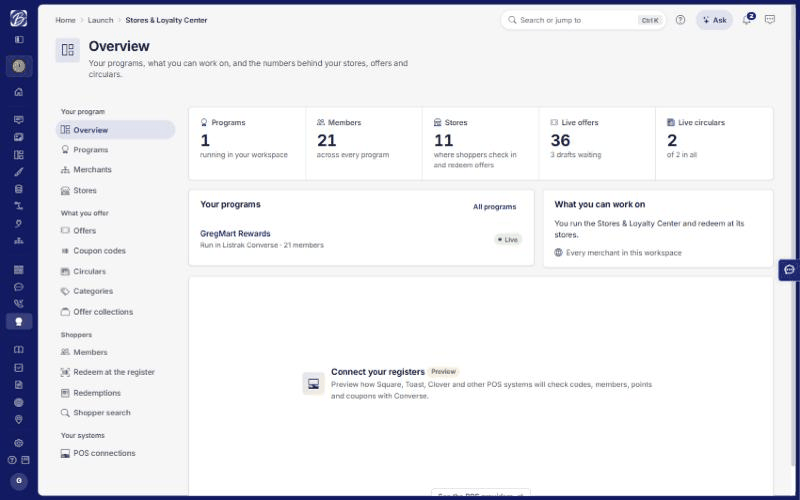
Picture 19. The Overview: the program's figures, its programs, and what this person can work on.
The Center opens on the Overview. Across the top are the figures - programs, members, stores, live offers and live circulars - and each one opens the page behind it. Your programs lists each program with how it runs, its members and its status, and What you can work on says whether this person runs every merchant or only some, and what they may do for each. When a program is new, the Overview lists what to do first: make the program, add the stores and make the first offer.
Why it matters. A manager sees the state of the whole program at a glance, and a merchant's own staff see only theirs.
2. Programs
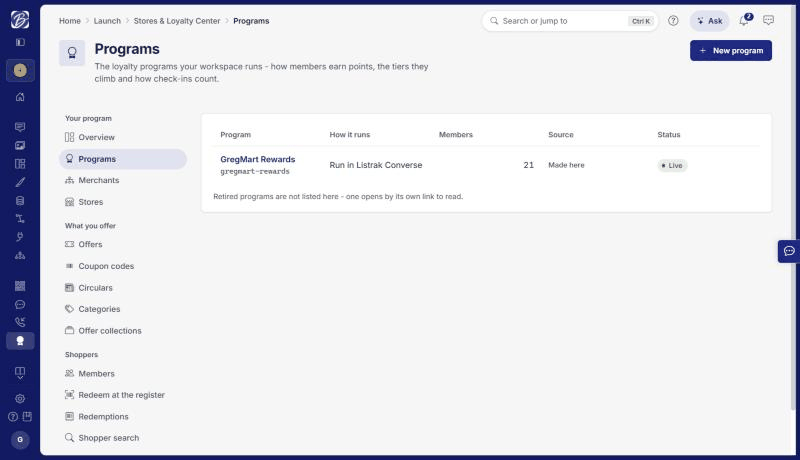
Picture 20. Programs, with GregMart Rewards live.
A program is the rules of the loyalty scheme: what members call points and how many a purchase earns, the points for a check-in, for joining and for a birthday, what a check-in must prove, the terms a member agrees to, how offers are shared, when points expire, and the tiers members climb. Each sits behind its own heading on the program's page, with a line that says what is set inside it. A program can run in Listrak Converse, or come from the brand's own system with Converse adding to it.
Why it matters. Every point a member earns, in the thread, on the website or at the till, is worked out from these rules.
3. Merchants
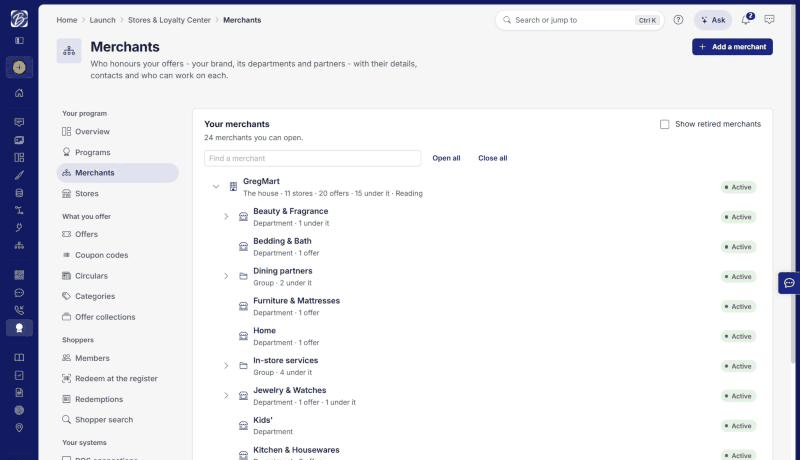
Picture 21. Merchants: the house and everyone beneath it who honours the program's offers.
Merchants are everyone who honours the program's offers, arranged as a tree. The brand itself is the house, at the top, and beneath it go its departments, brands, concessions and partners - here GregMart's departments and the dining partners inside its stores. Each merchant has a page with its details and hours, its people, who may open it and with what role, its stores and the merchants beneath it.
Why it matters. A concession or a partner restaurant runs its own offers and sees only its own stores and its own report, inside the brand's one program.
4. Stores
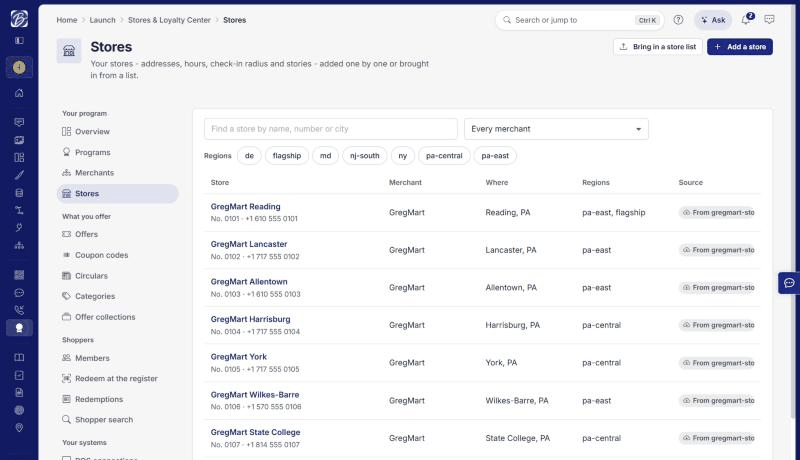
Picture 22. Stores, brought in from GregMart's store list.
Stores holds the real stores: each one's number, address, phone, manager and picture, its pin on the map with the radius that proves a visit, its time zone and opening hours with holidays, and the stories the brand tells about it. Stores can be added one by one or brought in at once from a spreadsheet or a CSV file, and a store that came from another system says so.
Why it matters. The store is where a check-in is proved and where a coupon is redeemed, and it is what the conversation names when a shopper scans the code at the door.
5. Categories
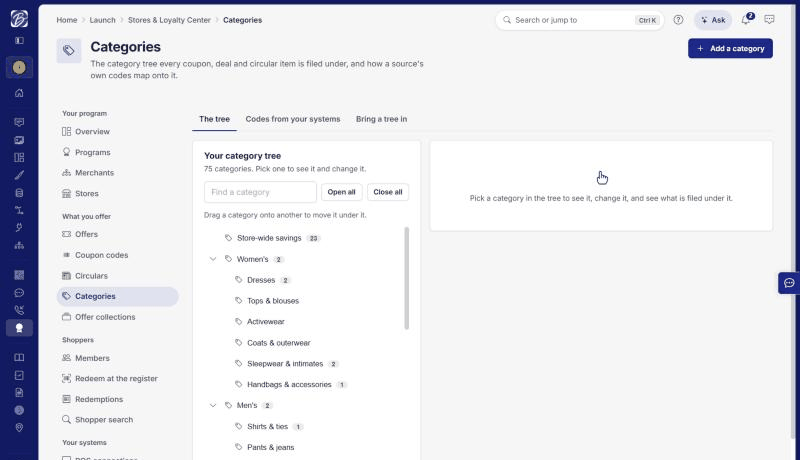
Picture 23. The category tree everything is filed under.
Categories is the tree the whole program is filed under, the way a store arranges its departments. Every coupon, deal, reward, circular and circular item can be filed under it, and shoppers browse and search by it in the thread, on the web overlay and with the AI Concierge. Codes from your systems maps a register's or a feed's own codes onto the tree, so items that are synced in file themselves, and Bring a tree in loads a whole tree from a spreadsheet.
Why it matters. "15% off everything in Home" means exactly what shoppers see in Home.
6. Offers
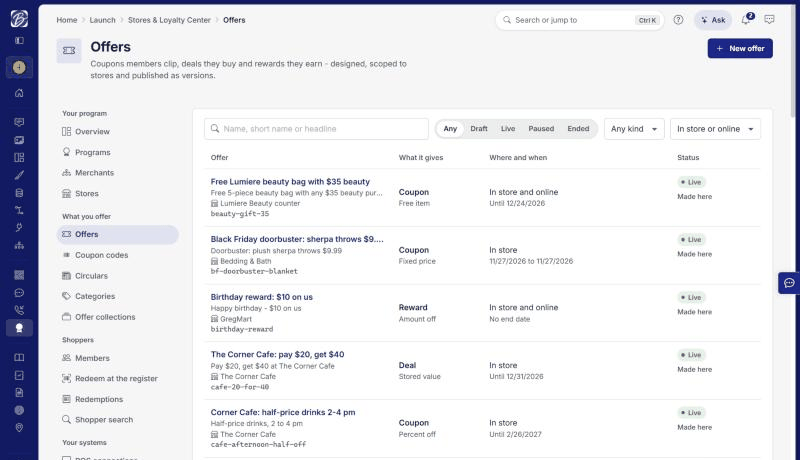
Picture 24. Offers: coupons, deals and rewards, each with what it gives, where and when.
Offers holds everything a shopper can get: a coupon they clip for free, a deal they buy, such as $20 for $40 at The Corner Cafe, and a reward they earn with points or visits. An offer is designed once - what it gives, where and when it works, who it is for and how it looks - and Converse checks it as it is written, shows it the way a shopper will see it, and puts it on the shelf when it is published, as a version a member's wallet keeps.
Why it matters. One offer, written once, appears in the thread, on the website and at the till with the same rules.
7. Coupon codes
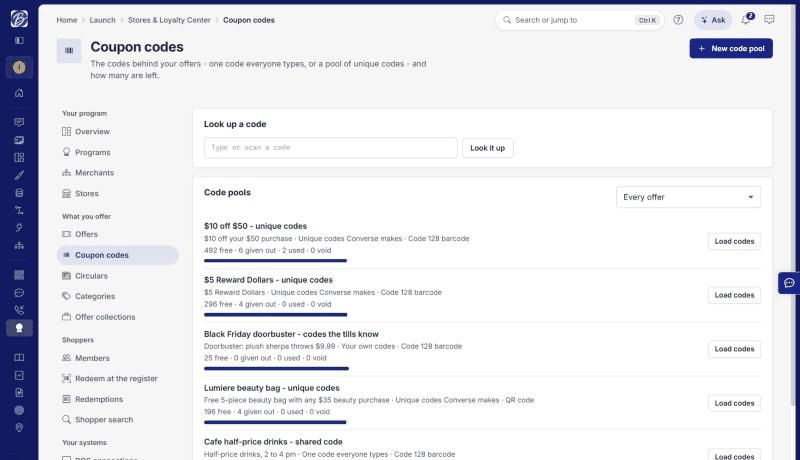
Picture 25. Coupon codes: the pools behind the offers, and how many are left.
A coupon can carry one code everyone types, a unique code for each member that Converse makes, or a code the brand's tills already know. Coupon codes holds those pools, with how many are free, given out, used and void, Load codes to add more, and Look up a code to see where one code stands. A Loyalty manager can void a code that has leaked, so no till takes it again.
Why it matters. A unique code is used once, by the member it was given to, so the brand knows exactly which coupon was used where.
8. Circulars
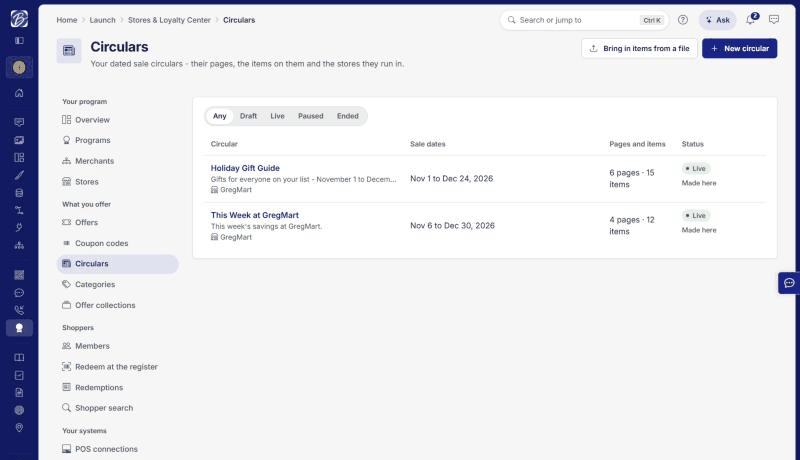
Picture 26. Circulars: GregMart's two live ads.
A circular is the brand's dated sale flyer: its pages as pictures and the items on sale with their prices. On a circular's page the team adds the pages, marks each item's place on its page - the tap areas a shopper taps - links an item to a coupon so it can be clipped, chooses the stores it runs at and publishes it. Items can come in from the file an ad system already exports.
Why it matters. The ad the brand already makes becomes something shoppers can browse, search and clip, as in stop 5 of Chapter 1.
9. Offer collections
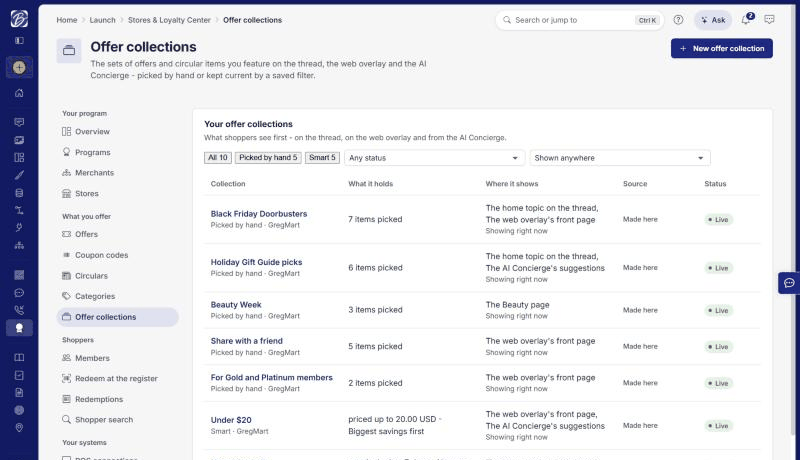
Picture 27. Offer collections: what shoppers see first, and where.
An offer collection is a set of offers and circular items the brand features, such as Black Friday Doorbusters. A collection is picked by hand, in the order the team wants, or kept current by a saved filter - Under $20, biggest savings first. Each says where it shows: the home topic on the thread, the web overlay's front page or the AI Concierge's suggestions.
Why it matters. The team decides what a shopper sees first, on every screen, from one place.
10. Members
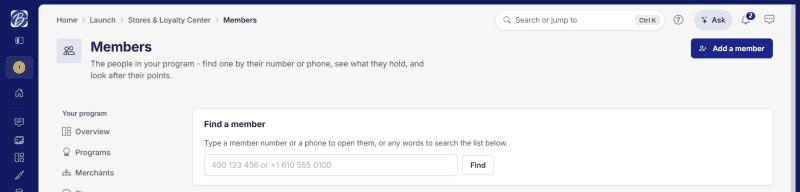
Picture 28. Members: find a member by their number or phone.
Members holds the people in the program. Find a member by the number or phone they show, then see what they hold, put an offer in their wallet, look after their points and see their visits - and, when a person asks to be forgotten, erase them. A member is known by their mobile number; members are added here, by the brand's own systems through the Loyalty API, or join on their own in a conversation that offers it.
Why it matters. Staff can help a member in a moment, and a person's request to be forgotten is honoured in one place.
11. Redemptions
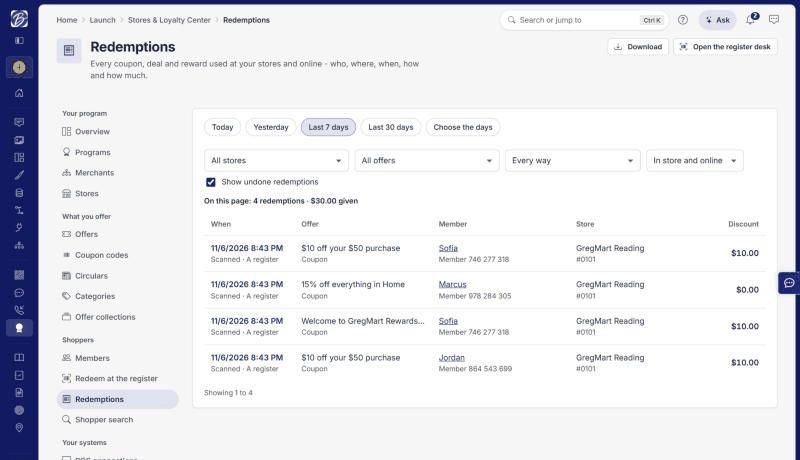
Picture 29. Redemptions: the usage report, here the last seven days.
Redemptions is the usage report: every coupon, deal and reward used at the stores and online, with who used it, where, when, how it was used and what it gave, the undone ones marked. The days, the store, the offer and the way it was used narrow it, the totals line counts what is on the page, and Download saves every redemption that matches as a CSV file.
Why it matters. It is the list a merchant asks for at the end of the month, and the record behind every number.
12. Shopper search
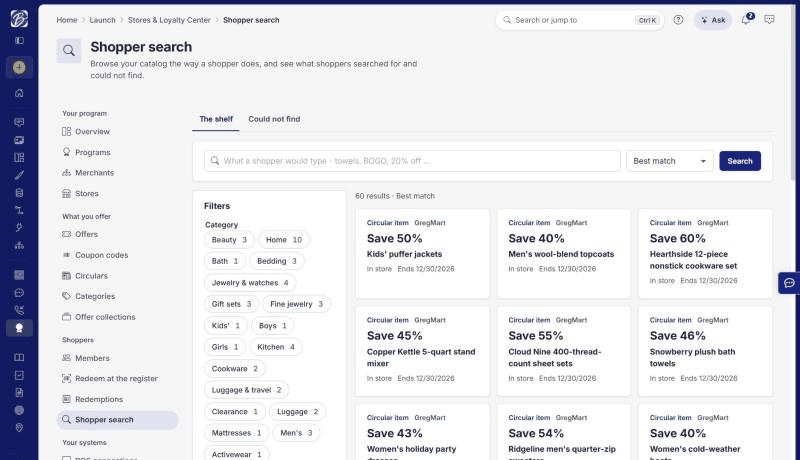
Picture 30. Shopper search: the shelf exactly as a shopper finds it.
Shopper search shows the shelf the way a shopper finds it: only what is published and running, searched by the words a shopper types and narrowed by the same filters. Could not find shows the searches that found nothing.
Why it matters. The team sees what shoppers want that the program does not offer yet.
13. POS connections
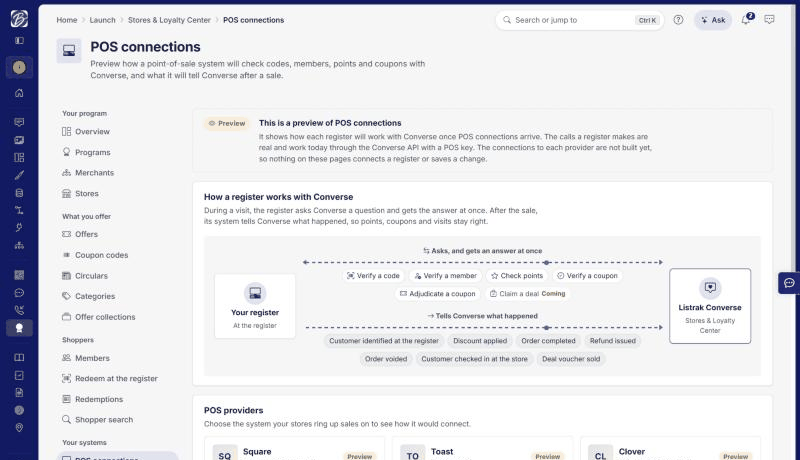
Picture 31. POS connections: how a register works with Converse.
POS connections previews how the point-of-sale systems stores ring up sales on will work with Converse: what a register asks during a visit, what its system tells Converse after the sale, and what connecting each provider will take. The questions a register asks are real and work today through the Loyalty API with a POS key; the connection to each provider is not built yet, so nothing on these pages connects a register.
Why it matters. A brand can keep the registers it has: they redeem, and they add points, against the same ledger as the phone till.
Good to know
- GregMart is made up. Its stores, offers, prices and shoppers are invented, and the page says so at the top and in the footer. Say it too when you present.
- The demo is live, not a recording. The coupons, points and codes in the pictures change as the program and other visitors change them, and a clip in the box really lands in Jordan's wallet.
- Nothing on the page reaches a real customer. The page never sends a message on its own, and the demo till never uses anything up. The only messages that go out are the ones you start from your own phone with Text it to my phone.
- A check-in from your desk is refused on purpose. It shows that a visit needs proof the shopper is really at the store.
- What is on the way is on the way. The last two sections of the page list what is coming; present them as the roadmap.
- More to read. Loyalty system diagrams draws the whole system in four pictures, and the handset cheat-sheet is the handout for a shopper's phone and the store team.