
Offers
What this page is for
Offers is where you make everything a shopper can get from your loyalty program: a coupon they clip for free, a deal they buy, such as $20 for $40 of dinner, or a reward they earn with points or visits. You design each offer once - what it gives, where and when it works, who it is for and how it looks - and Converse checks it as you type, shows you the coupon the way a shopper will see it, and puts it on the shelf when you publish it.
What you see
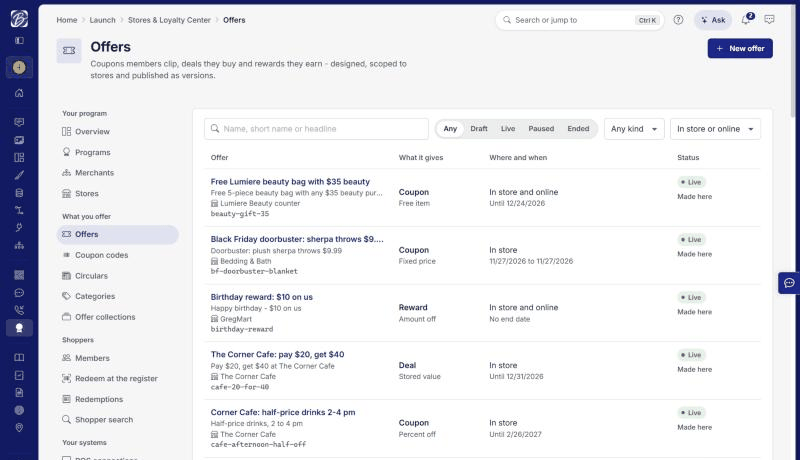
- The list of offers. One row for each offer you can reach, drafts included: its name and headline, What it gives, Where and when, whose it is, where it came from and its Status. A live offer whose draft has newer changes says Changes not live yet.
- The filters. Look for an offer by its name, short name or headline, and narrow the list by status, by kind, by in store or online, and by program when you run more than one. When offers came from more than one place, a Source filter appears too.
- An offer's page. Four tabs: Design, where you build the offer; Check it, where you ask whether it fits a shopper; Versions, where you see every version you published; and Numbers, where you see how shoppers moved through it - shown, opened, saved to a wallet or bought, looked at again in the wallet, the code shown at the till, and redeemed - with how many fewer each line counts than the one above. Choose the days at the top. A line that cannot be counted under what you chose says so instead of showing a zero. Numbers appears once the offer is saved.
- The essentials. At the top of Design: the kind (Coupon, Deal or Reward), the Name, whose it is, where it can be used, what it gives and its Headline. These are always open, so you can make a simple coupon on one screen.
- The sections behind a summary. Where it can be used, When, Who, The basket, Limits and stacking, Getting it and sharing it, How it looks and Notes for your team. Each is folded under one line that says what is set. A section with something to fix opens by itself.
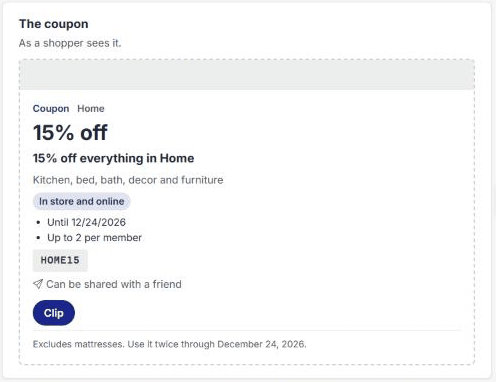
- The coupon. Beside the form, The coupon shows the offer as a shopper sees it, and it changes as you type.
- The unsaved-changes bar. When you change something, a bar appears at the bottom of the page: You have unsaved changes, with Reset and Save.
What you can do
Make a coupon
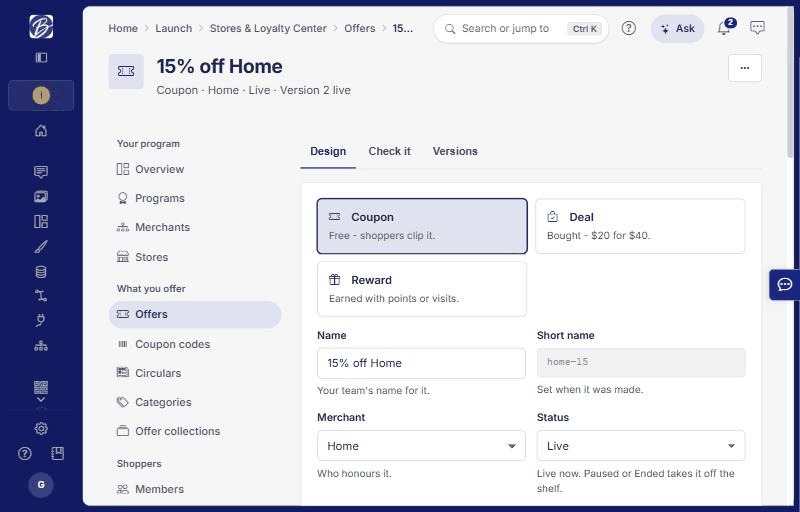
- Select New offer.
- Choose Coupon, and type the Name your team uses for it. Converse fills in the Short name from it, which never changes once the offer is made.
- Under Where it can be used, tick In store, Online or both.
- Under What it gives, choose what the shopper saves, such as Percent off or Buy some, get some, and fill in the numbers that appear.
- Type the Headline shoppers read first, such as "20% off all bath towels". Watch The coupon beside the form to see how it reads.
- Select Save in the bar at the bottom of the page. The offer is saved as a draft that no shopper sees yet.
Choose where, when and for whom
- Open Where it can be used and choose Every store or Only some stores. With Only some stores, tick the stores, or type Region tags to include every store that carries the tag.
- To ask shoppers to prove they are in the store, choose the weakest proof you accept under Proof they are in the store.
- For an online offer, choose One code for everyone and type the code, or A code each, from a pool, and add the link shoppers land on.
- Open When to set the dates, the last day to clip, how many days a shopper has after clipping, and the days and hours it works. Dates and hours follow your workspace's time zone.
- Open Who to limit it to tiers, new members, a birthday month or shoppers who checked in today.
- Open The basket for a minimum spend or quantity, and choose the categories it covers or leaves out from your category list. Add the SKUs and brands too, if the offer is that narrow.
- Select Save.
Check it before shoppers see it
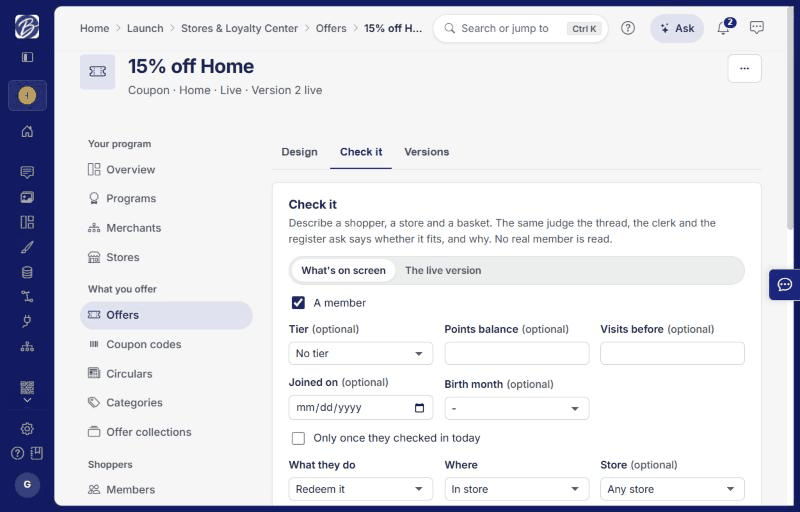
- Select the Check it tab.
- Describe a shopper: whether they are A member, their Tier, their points and visits.
- Choose the Store, where they are, when, and what is in their basket. The time you type is the time at that store.
- To check a limit or a product scope, open Limits and products: say how often the offer has been used so far, and add the basket's lines with their category, quantity and price.
- Select Check. Converse answers Fits, Does not fit or Fits - check at the register, with every reason and what it takes off.
Choose What's on screen to judge your unsaved design, or The live version to judge what shoppers see now. If you can read the offer but not change it, you check The live version or The saved draft. No real member is looked up.
Publish it
- Select Publish at the top of the page.
- Read what publishing does, and type a note about What changed if you like.
- Select Publish now. Converse saves the offer as Live, freezes its terms as a version and puts it on the shelf. It then tells you what the shelf did, for example that shoppers can now find it, or that a granted offer is not found by browsing.
When a live offer has newer changes, the button says Publish the changes. Shoppers who already clipped the offer keep the terms they clipped.
If publishing could not finish, the offer says Not live yet - publish did not finish and the button says Publish again. Shoppers cannot find it until it does.
Pause, end or retire an offer
- To take a live offer off the shelf for a while, set its Status to Paused, or to Ended when it is over, and select Save.
- To retire it for good, open the ⋯ menu at the top of the page and select Retire, then confirm. A retired offer cannot be put back. It is kept so you can read it, and wallets keep what they already hold.
Compare versions
- Select the Versions tab.
- Select See it to see a version's coupon as shoppers saw it.
- Select the compare button that names the version before it - for example Compare with version 2 - to see what that version changed, or Compare with the draft to see what your unsaved design would change.
Make a gift certificate
A gift certificate is money a member pays now and spends later, a little at a time, in the store or online.
- Select New offer and choose Gift certificate as the kind. Converse sets it up as stored value that anyone can buy and pass on, and takes away the rules about who or when, because a gift certificate never expires.
- Under Amounts, type the amounts it sells, separated by commas: 25, 50, 100, 250. You can list up to nine.
- Tick Let shoppers choose their own amount to let buyers pick any amount in a range, then fill in From, Up to and In increments of.
- Leave A gift may carry the buyer's message ticked so a gift can carry a personal note.
- Check it and publish it as you would any offer. The start and end dates only say when it is on sale - the certificate itself never expires.
Members buy it in a conversation, and the Gift certificates page shows what you sold and what you still owe.
Let points pay toward a deal or a certificate
When your program lets members use their points toward purchases (its Use points toward purchases settings), a deal or a gift certificate can set its own rate. Fill in This offer's points rate to give points a different value on this offer, and The most points may pay (%) to cap how much of its price points can cover. Leave them blank to use the program's.
A reward that is worth money, such as an amount off or a free item, shows what it would cost at your program's rate under its points cost, so you can price rewards the same way your points pay toward purchases.
How it fits
Offers are what your loyalty conversations hand out. When a shopper scans the code by your door, joins and asks what is on sale, the coupons and deals they see come from here - on the thread, in the web overlay and in the add-ins on your own website - and Shopper search shows you that same shelf. Put offers on a circular's items so shoppers can clip them from the page, and feature them in offer collections so they show first.
Good to know
- The form only offers the benefits a kind can carry: a deal never gives points, and a punch card is always a reward.
- Every finding is shown at the field it is about, and the offer cannot be published until they are fixed. When Save cannot be selected, the line under the form says what it still needs.
- An offer that comes from one of your systems shows its source, and its source changes it there. On this page you can read it, check it and compare its versions.
- If someone else saved the offer while you had it open, select Read their version. Your own changes are kept aside: select Put my changes back to save them over theirs, or Keep theirs.
- A new offer is in the currency of its program.
- Store teams and contacts of other merchants can read offers but not change them. A merchant's own contact sees only that merchant's offers.
- The words under Check it are the judge's own, the same ones shoppers and clerks see.
Related pages
- Stores & Loyalty Center: your program, its tiers and the overview.
- Circulars: link an offer to an item on your sale flyer.
- Shopper search: see your offers the way shoppers find them.