
Shopper search
What this page is for
Shopper search shows you your shelf exactly the way a shopper finds it: only the coupons, deals, rewards and circular items that are published and running, searched by the words a shopper types and narrowed by the same filters they use. It also shows you the searches that found nothing, so you can see what shoppers want that you do not offer yet.
What you see
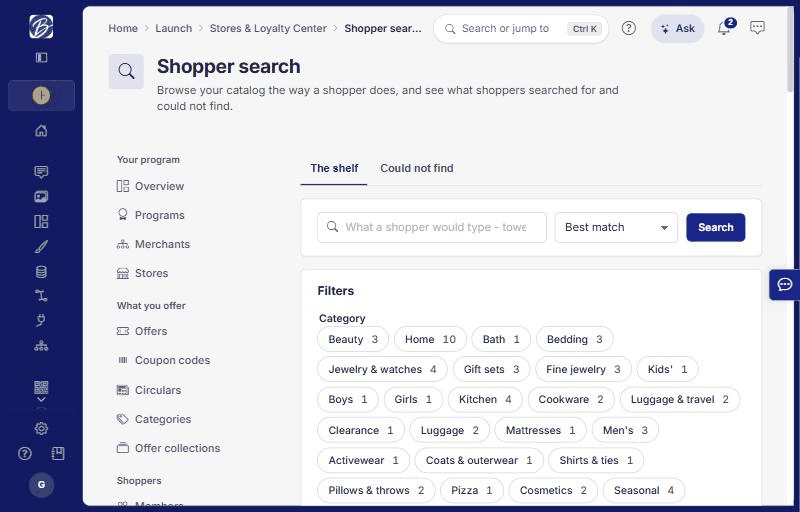
- The search bar. Type the words a shopper would type, choose a program when you run more than one, and choose the Sort: Best match, Biggest savings, Ending soonest, Newest, Most popular, or Nearest once you search near a store.
- The filters. On the left, a group of chips for each way the shelf can be narrowed - Category, Merchant, Where, Kind and Savings - each with how many items it would find. A greyed chip would find nothing with the filters you already chose.
- More filters. Folded under one line that says what is set: a store, or near a store's pin and how far; a price range; dates such as new or ending soon; and whether an item is Shareable or Needs a check-in.
- The shelf. A card for each item found, with what it saves or costs, its name, where it can be used, when it ends and badges for sharing, check-ins and tiers. Select an offer's name to open it. A saving is shown as a whole percent, rounded down so it is never larger than the offer gives - a saving of 62.5% shows as Save 62%.
- What shoppers could not find. The Could not find tab lists the searches that found nothing, by day: what they typed, how many times and when it was last searched.
What you can do
Search the shelf as a shopper
- Type a few words in the search bar, such as "bath towels", and select Search.
- Select chips to narrow the shelf, such as a category or Online. Select a chip again to take it away.
- Open More filters to search At a store or Near a store, set a price range, or find what is ending soon.
- Use Previous and Next to page through the shelf. Clear the filters starts over.
Find what shoppers are missing
- Select the Could not find tab.
- Choose the days to look at with From and To.
- Read the words shoppers typed. Emails, codes and member numbers are never kept, and digits show as #.
Remove old searches
- Under Remove old searches, type how many days to keep.
- Select See what would be removed. Converse counts the searches it would remove and removes nothing yet.
- If the count looks right, select the button that names it, such as "Remove 120 searches".
How it fits
Everything a shopper finds in your loyalty conversations, in the web overlay, in the add-ins on your own website and through the AI Concierge comes from the same shelf, so what you see here is what they see. When an offer you expect is missing, check that it is published, that it runs today and that it can be used where you are searching. The searches that found nothing are a direct list of what to offer next, or of words to add to an offer's headline.
Good to know
- The shelf shows only what is published and running. A draft, a paused offer or one that ended never appears here.
- This page reads no member, so it cannot show what a particular shopper clipped or what their tier unlocks.
- Searching near a store needs the store's pin. Add each store's location on its page.
- A merchant's own contact searches only that merchant's shelf, and does not see the Could not find tab, which holds the whole workspace's searches.
Related pages
- Offers: make and publish what shoppers find.
- Circulars: put your sale flyer's items on the shelf.
- Stores & Loyalty Center: your program and the overview.